
AtlasDays logo AtlasDays logo AtlasDays

Trackers and Limits

Last updated: April 30, 2026

Troubleshoot a tracker that looks wrong, keep the setup aligned with your rule, and verify when the result is safe to trust.

Hero illustration for Trackers and Limits, showing counting-rule motifs, threshold markers, and window frames in the AtlasDays visual style.

What This Page Helps You Do

Use this page when a tracker looks wrong, when you are not sure the setup matches the rule you care about, or when you want to know whether the result is safe enough to act on.

By the end of this page, you should know:

A tracker is a counting rule, not the record itself. AtlasDays derives it from your trip record, so incomplete, approximate, or unresolved trips will flow straight into the result.

When a Tracker Looks Wrong

Most tracker mismatches come from a small number of setup or trip-record issues. Check these before you change anything else:

When to Add a Tracker

Add a tracker when you already know the question you want AtlasDays to answer, such as “How many Schengen days have I used?”, “How many days have I spent in this country this year?”, or “How long has this stay been since it started?”

Dashboard showing a Schengen tracker card with used days, remaining days, and summary stats

What Trackers Do in AtlasDays

Each tracker applies one counting rule to a selected country set. The same trip can affect multiple trackers at once, because each tracker can use a different country scope, threshold, direction, and time window.

You can track:

Choose the Right Tracker Preset

Supporting illustration for Trackers and Limits, focused on choosing the right tracker preset in the AtlasDays visual style.

Residence

Use Residence when you want to accumulate time in one country across a year-style period. It starts as a Reach target yearly tracker with a default threshold of 183 days, and you can still change the threshold, year, or fiscal-year-style period later.

Schengen 90/180

Use Schengen 90/180 when you want one preconfigured rolling upper-limit tracker for the Schengen area instead of building that country set manually.

Visa Limit

Use Visa Limit when the question is about one stay anchored to a clear start date. It starts as a Stay under per-stay tracker and is the closest fit for permit-based or single-stay limits.

Travel Goal

Use Travel Goal when you want to accumulate days toward a personal target rather than stay under a limit.

Custom

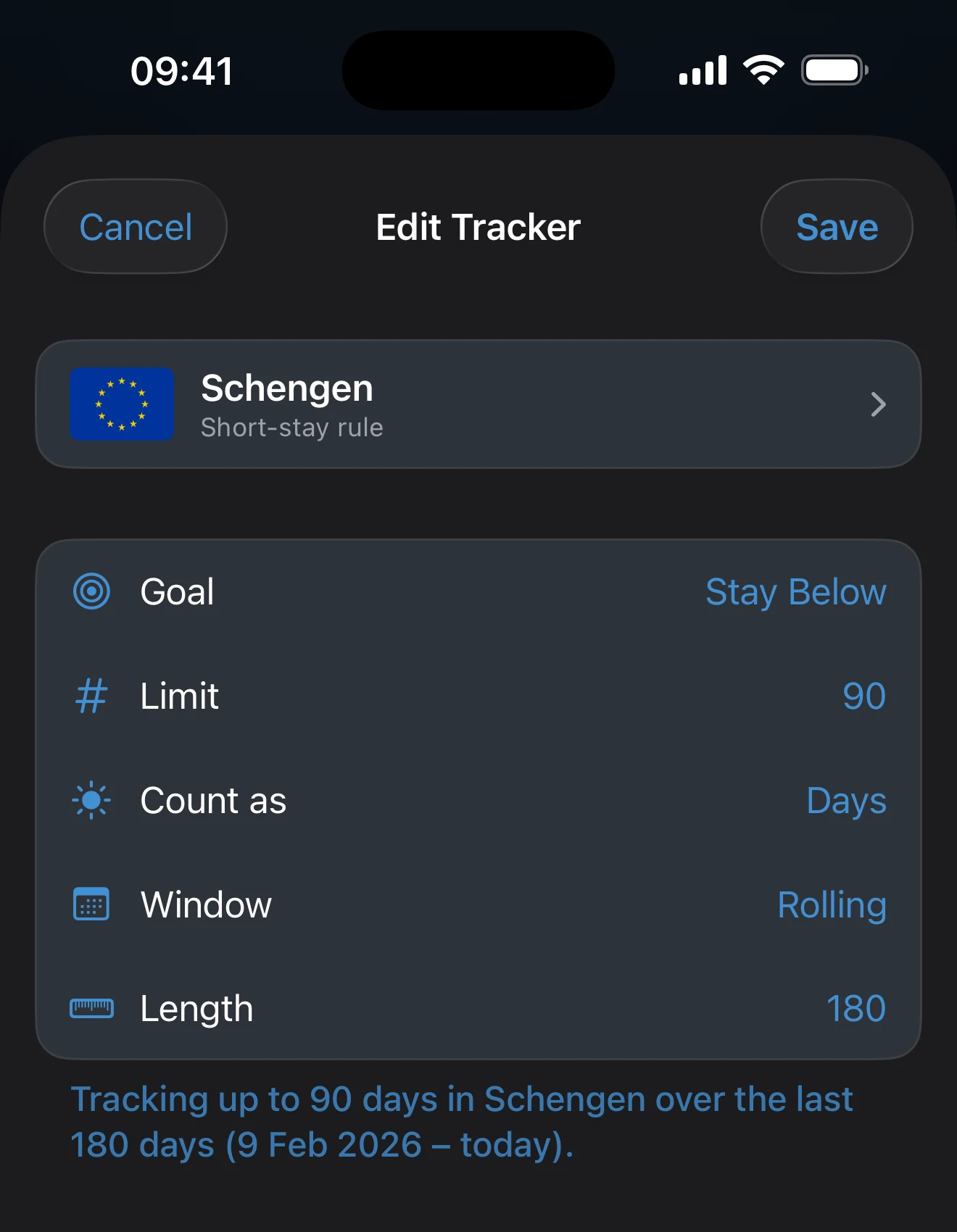
Use Custom when the preset is close but not right. You can choose your own country scope, threshold, mode, and time window.

Add a Tracker sheet showing Residence, Schengen 90/180, Visa Limit, Travel Goal, and Custom tracker types

Choose the Tracker Mode

Tracker mode selector showing Stay under and Reach target options

Choose the Time Window

Rolling

Use Rolling when the question is “How many days have I used in the last N days?” The window moves forward every day, so old days fall off automatically. If you expected a calendar-year or stay-based total, this is the wrong window.

Per Stay

Use Per Stay when the question is about one stay rather than a whole year or rolling history. In AtlasDays, upper-limit per-stay trackers are anchored by a Tracking from date, so the stay has a clear start inside the app. If that date is off, the tracker will be off.

This works best when the stay you care about is represented cleanly in the trip record. If that stay is split across messy or approximate entries, fix the trips first.

Yearly

Use Yearly when the question is “How many days in this year-style period?” If the total looks wrong, first confirm that the stored year or fiscal-year-style period is the one you intended. AtlasDays supports:

Tracker window selector showing Rolling, Per Stay, and Yearly options

Days or Nights

Trackers can count either days or nights. If the number looks off by one, check this before you edit the trip record.

What Counts Toward Tracker Math

Why the country breakdown can look higher than the tracker total: in a multi-country tracker such as Schengen, the detail view can show the same calendar date under more than one country if you were present in multiple countries on that date. Each country row gets that day in its own subtotal, but the tracker total still counts that date once across the whole tracked area. If you were in three countries on one day, the country subtotals can add up to 3 days while the tracker total adds only 1 day.

What Does Not Count Toward Tracker Math

When a Tracker Is Trustworthy

You can act on a tracker when both the rule and the trips behind it match the real-world question. Use this checklist before you rely on the number:

Treat the number as provisional if any relevant trip is still Year, Unknown, incorrectly marked Transit, or still ongoing when you expected a fixed total. AtlasDays will still count what it can, but you should not use that result as final until the trips behind it are exact and resolved.

Smart Alerts and Multiple Trackers

AtlasDays supports multiple concurrent trackers. Dashboard shows one tracker card if you only have one, and a swipeable set when you have several.

For upper-limit trackers, AtlasDays starts with sensible warning thresholds such as 7 days remaining, 1 day remaining, and at limit where they apply. For target trackers, it can alert when the target is reached. You can adjust tracker alert thresholds and alert time in the tracker alert settings, and alerts are recalculated when your trip data changes.

Why Smart Alerts May Not Fire

Missing Smart Alerts do not prove the tracker is wrong, and delivered Smart Alerts do not prove the tracker is configured correctly. Review the tracker itself before you rely on it.

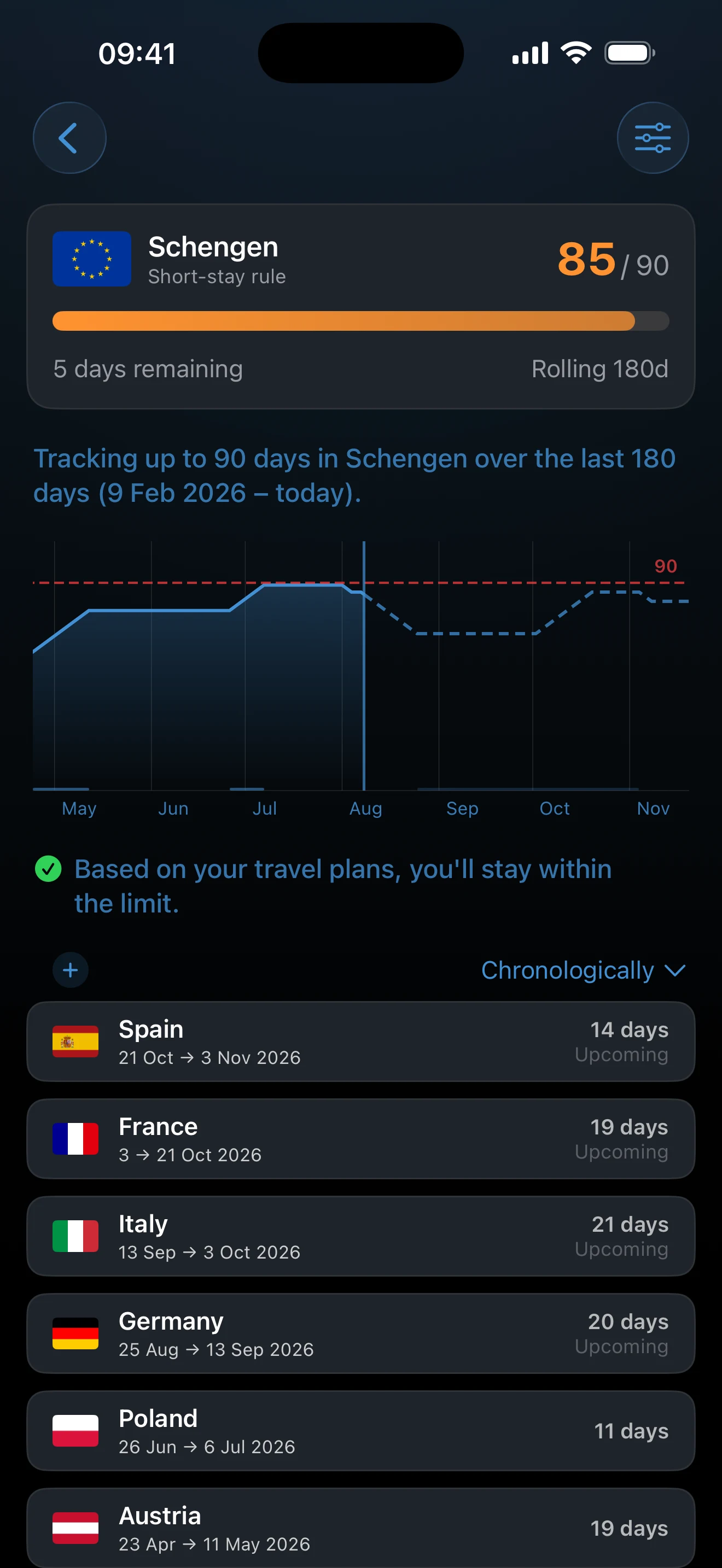
Reading the Tracker Detail Chart

Tracker Detail can show different chart shapes depending on the tracker's window. Rolling trackers show a rolling count over time. Yearly trackers show the calendar or fiscal-year period for the stored tracker year. Per Stay trackers show a cumulative chart when the tracker has a Tracking from date.

Stay and Recovery Insights

Below the chart, AtlasDays shows short forward-looking text derived from the same trip record the tracker uses:

If a relevant future trip is still Year or Unknown, or ongoing with no end date, the projection cannot reflect it precisely. Fix the trip record rather than the chart.

The chart reflects your current trip record, not a promise. It assumes planned future trips happen on the dates you saved and can only be as precise as the trip dates behind it. If your plans change, edit the trip and the chart will update on its own.

Adding a Trip From Tracker Detail

Tracker Detail has a + button that opens the trip form pre-scoped to the tracker's country set. A one-country tracker locks the country field. A multi-country tracker shows a filtered picker so you can only pick from the tracker's countries. Use this when the chart or the trips section on Tracker Detail shows that a trip is missing and you want to add it without leaving the view.

How Trackers Relate to Dashboard and Exports

If you want to check the raw trip output before trusting a tracker, use Dashboard and Map to inspect the live record and Export and Reports to inspect the exported trip set.

Where to go next

Trip Modes and Record Quality explains how Exact Dates, Year, Unknown, Transit, and ongoing trips change tracker accuracy.

Dashboard and Map shows how to compare the tracker card with the trips and totals currently driving it.

Privacy, Location, and Sync covers notification permission, Auto-Detect Trips, and iCloud sync when alerts or background suggestions are part of the confusion.

Export and Reports helps you inspect the underlying trip output before you rely on or share tracker-related numbers.

Getting Started is the simpler setup walkthrough if you are still choosing your first tracker.

If the real question is the underlying travel rule rather than AtlasDays behavior, use Learn.