

How Trip Dates Work
A trip is recorded with its arrival and departure dates, and those dates drive every total. When you only know the year, save the trip as Year Only instead of guessing.
A trip carries its dates
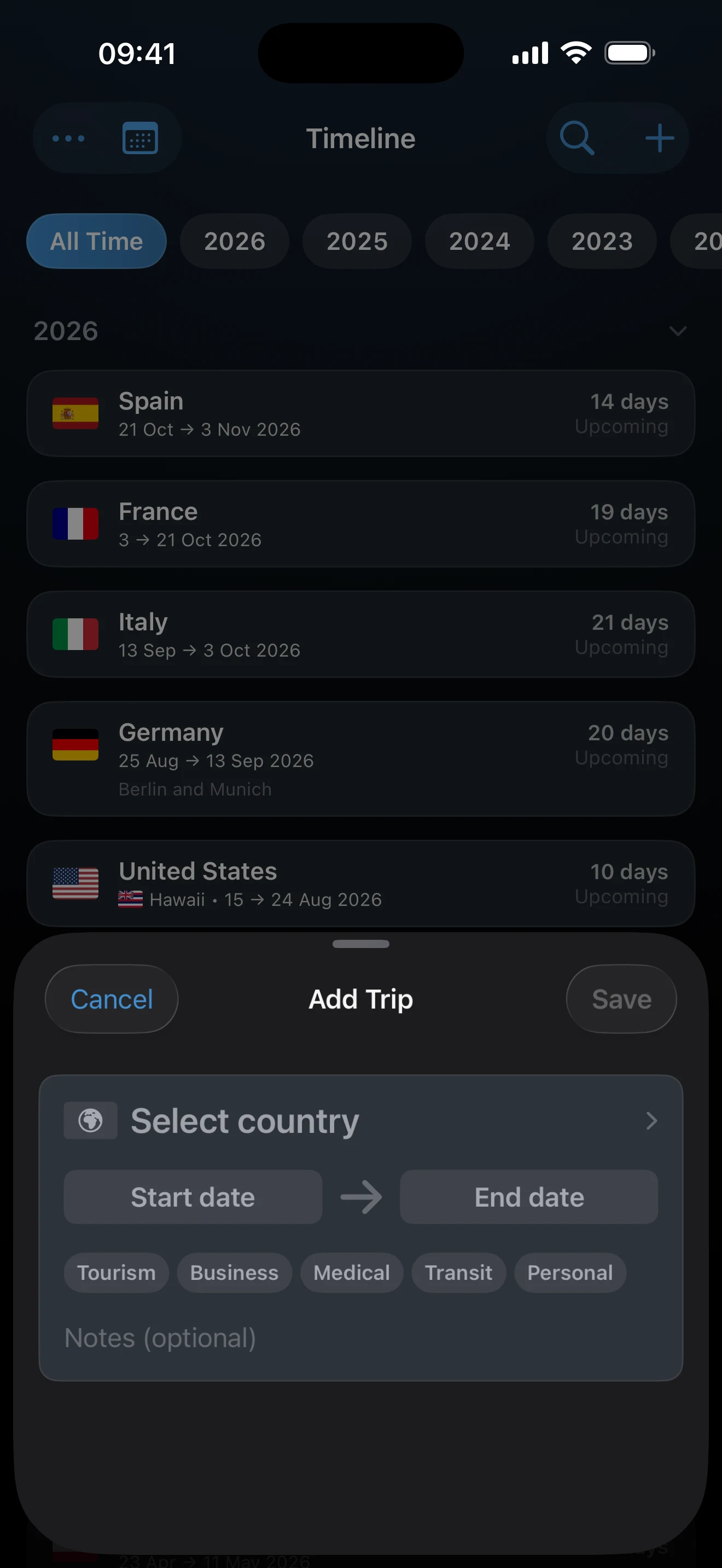
Adding a trip asks for a country, a start date, and an end date. Trips with dates feed Dashboard totals, tracker calculations, exports, and forecasts. Both boundary days count.
Open-ended trips
For a stay that has not ended, open the end date and tap the Open-ended pill instead of choosing a date. Once the trip has started, the Timeline shows it as Ongoing and AtlasDays counts through today until you add the departure date. A future open-ended trip shows as Open-ended.
Year Only
When you know the year but not the dates, tap the start date and choose Year Only under the date picker. The pickers switch to Start Year and End Year, and the end year is optional. As the app itself puts it: year-only trips count toward visited places and the map, but not day counts or trackers.
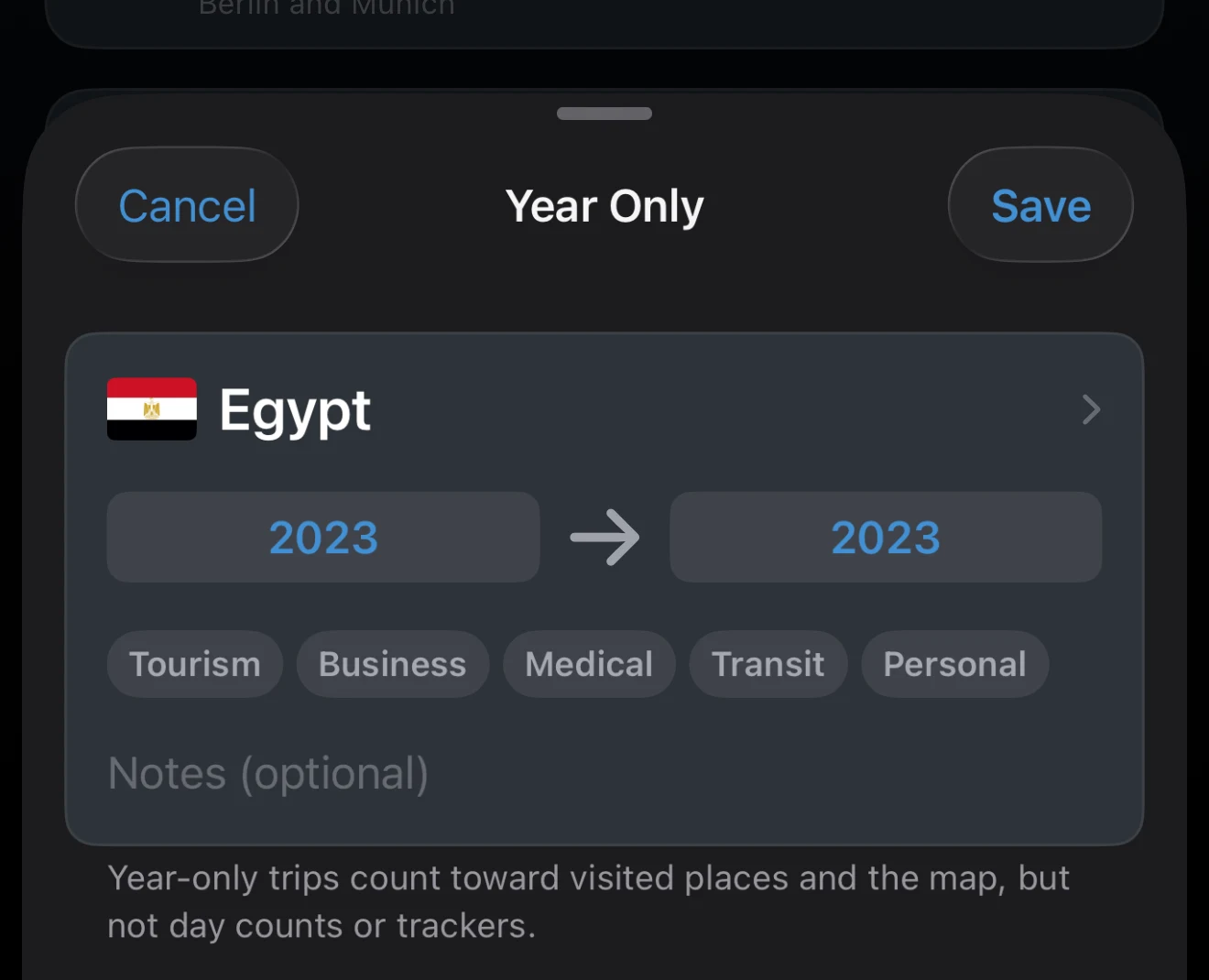
Year Only exists for the visited-places record and the map, mostly for older history. Anything that feeds a limit you rely on needs real dates.
Transit
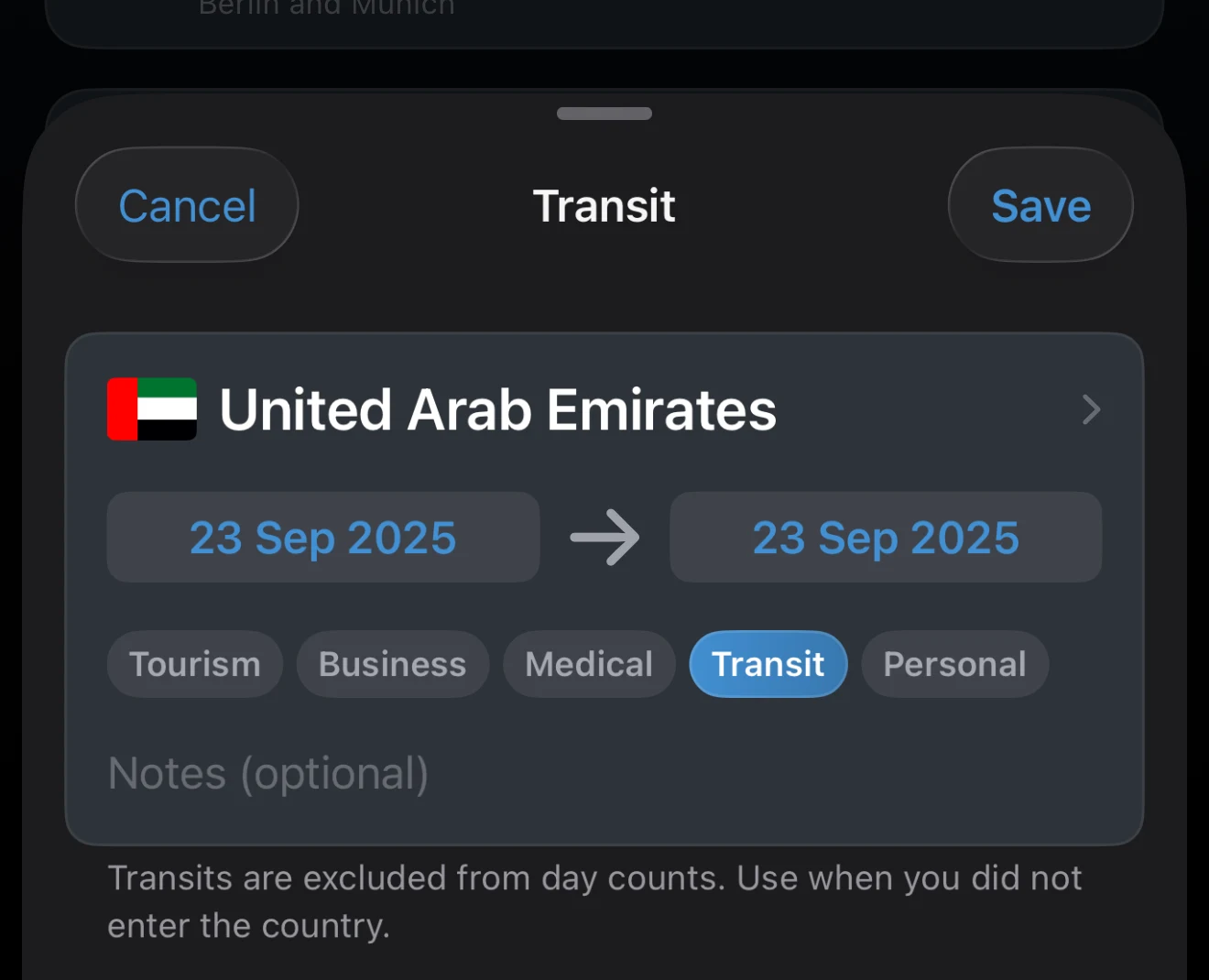
Transit is a purpose, not a date setting. Select the Transit chip when you passed through without entering the country, such as an airside connection. Choosing it clears the other purposes, and choosing another purpose clears it. International airspace and waters select it automatically. Transit trips are excluded from day counts and do not mark the country as visited.
Choose conservatively
Keep a half-remembered trip as Year Only for now, and give it dates once a passport stamp, booking, photo, or other record confirms the boundaries. A year that is honest about what you know is more useful than dates you had to guess.
If a trip is missing from a total
That is expected for Year Only trips: they mark the place as visited but create no calendar days. The same applies to trips imported with only a year, as in a CSV that has no full dates. Also check for a Transit trip. Give a trip real dates only when you can support them.
Last updated September 30, 2026