
AtlasDays logo AtlasDays logo AtlasDays

Privacy, Location, and Sync

Last updated: April 30, 2026

Troubleshoot Auto-Detect Trips, notification permission, and iCloud sync confusion without losing sight of AtlasDays' local-first privacy model.

Hero illustration for Privacy, Location, and Sync, showing locked-device privacy, optional cloud sync, and location-pin motifs in the AtlasDays visual style.

What This Page Helps You Do

Use this page when Auto-Detect Trips is delayed or missing, notifications or tracker alerts do not arrive, or you want a clear answer about what stays local and what iCloud sync changes.

By the end of this page, you should know:

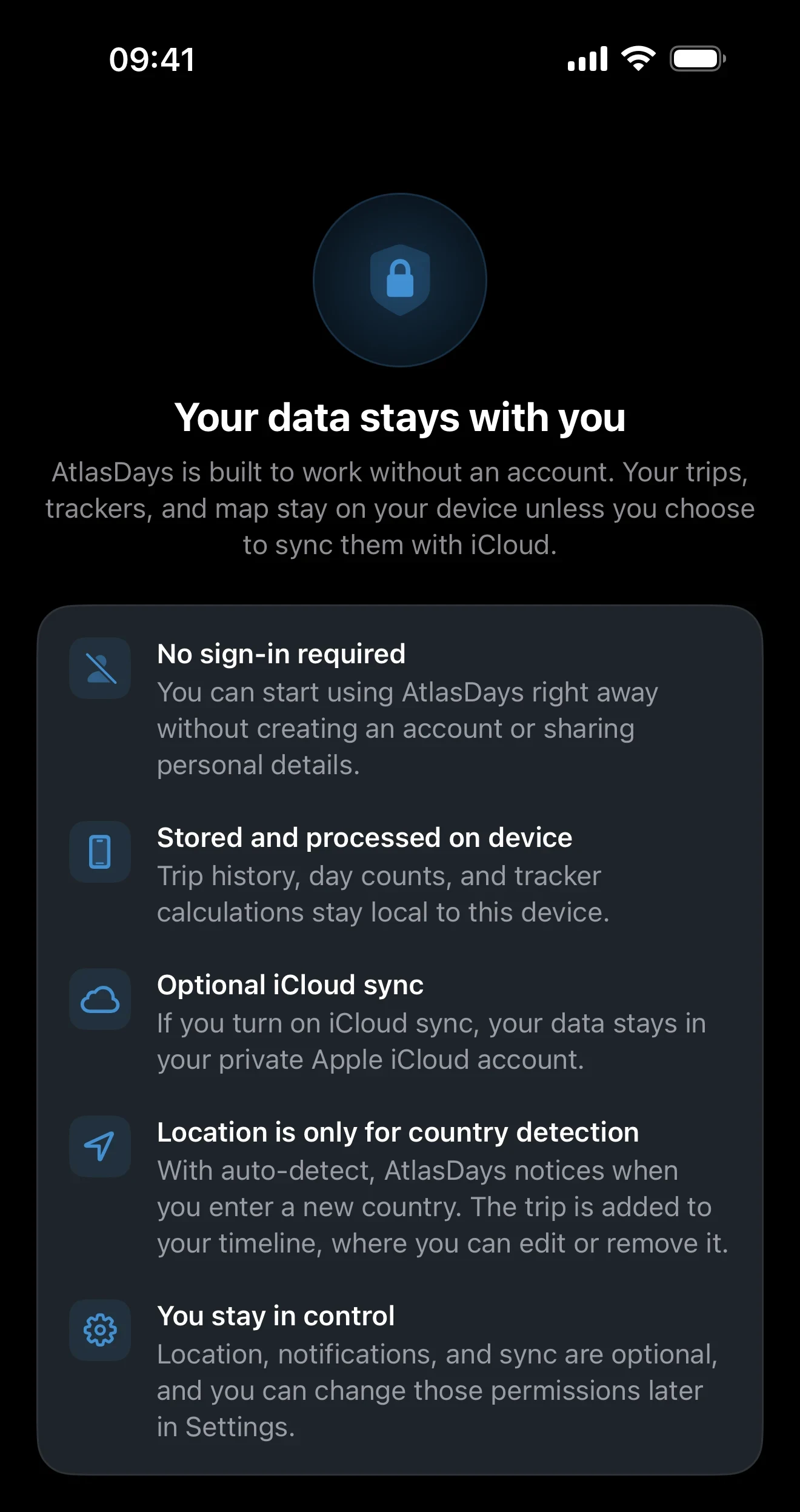
AtlasDays is local-first. There is no AtlasDays account, no sign-in, and no AtlasDays server copy of your trip history. Trips, trackers, and day calculations work on-device by default.

When Auto-Detect Trips or Notifications Do Not Behave as Expected

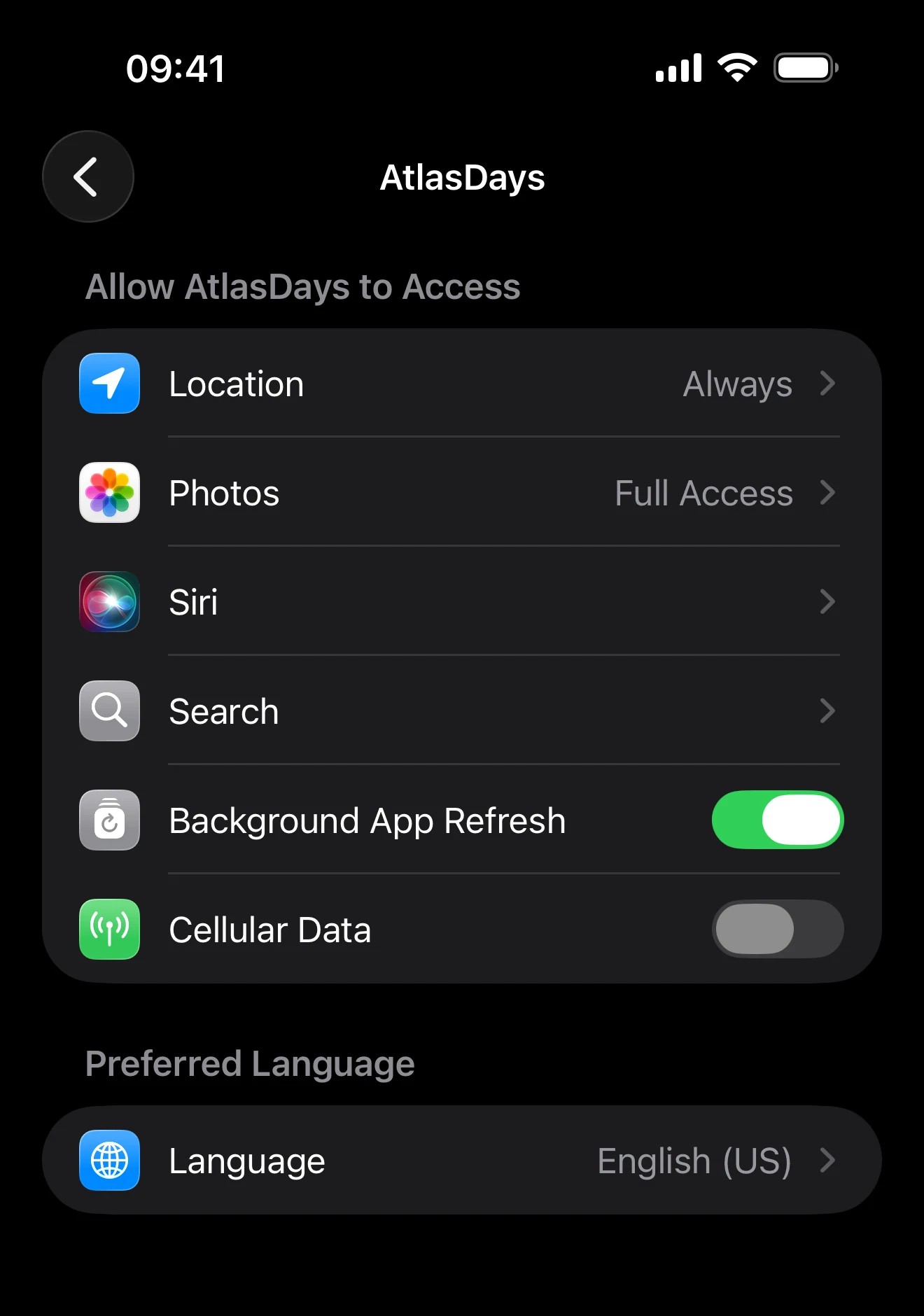
Most confusion here comes from how background detection and local alerts work on iOS. Check these first:

What AtlasDays Stores on Your Device

Your trip record and tracker data live in the app's local data store on your device by default. Manual trip entry, dashboard review, tracker calculations, Photo Import, CSV import, and export all work without an AtlasDays account.

AtlasDays also keeps some device-level app state locally, such as pending trip suggestions, so the app can continue where you left off.

If you are signed into iCloud, AtlasDays can also mirror a smaller set of preferences through Apple's iCloud key-value storage. That preference carry-over is separate from full iCloud sync.

Privacy screen explaining on-device storage, no sign-in, optional iCloud sync, and country-detection-only location use

How Auto-Detect Trips Works

Supporting illustration for Privacy, Location, and Sync, focused on how country detection works in the AtlasDays visual style.

Auto-Detect Trips is optional. When you turn it on, AtlasDays uses iOS significant-change location monitoring to notice that you may have entered a different country and then resolves the country on device using bundled country boundaries.

AtlasDays does not silently create trips from location events. It creates a suggestion that you can review, edit, confirm, or dismiss. If the app is open, you see that suggestion in-app. If the app is in the background and notification permission is allowed, you can receive a local notification.

What Photo Import Does with Photos Access

Photo Import is separate from Auto-Detect Trips. It scans geotagged photo metadata on device to draft past trips for review.

Which Permissions Matter

If iOS location permission or notification permission is denied later, AtlasDays mirrors that and turns the related in-app toggle off rather than pretending the feature is still active.

What Notifications Are For and Why They May Not Arrive

AtlasDays uses local notifications for two jobs:

These alerts are generated and scheduled on your device. They are not routed through an AtlasDays server.

Alerts screen showing configurable alert time and warning thresholds

When to Use iCloud sync and When to Leave It Off

Turn on iCloud sync if you want your trips and trackers available across multiple Apple devices or you want your Apple iCloud account to hold the sync-backed copy of that data.

Leave it off if you use one device only, prefer to keep the full trip record local to that device, or would rather rely on manual file exports for backup and transfer.

This page covers the high-level choice only. For exact sync behavior, restart expectations, reinstall flow, and new-device details, use iCloud Sync and Restore.

There are two separate iCloud behaviors in AtlasDays. Full iCloud sync controls whether trips and trackers use an iCloud-backed store. Separately, a smaller set of preferences can still mirror through Apple's iCloud key-value storage.

What This Page Does Not Solve

Where to go next

iCloud Sync and Restore explains what syncs, what does not, and what to expect after restart, reinstall, or a device change.

Trip Modes and Record Quality explains how Exact Dates, Year, Unknown, Transit, and ongoing trips affect the record behind alerts and trackers.

Trackers and Limits explains why tracker alerts may not fire and what to verify before trusting a tracker.

Photo Import explains the photo scan, review step, duplicate handling, overlaps, transit detection, video evidence, and locked older trips.

Export and Reports explains how to create a portable record before major cleanup, device changes, or support questions.

Getting Started shows where privacy, permissions, and optional detection fit into first-time setup.

For the formal policy rather than the operational Help page, read the Privacy Policy.