

Home Screen Widgets
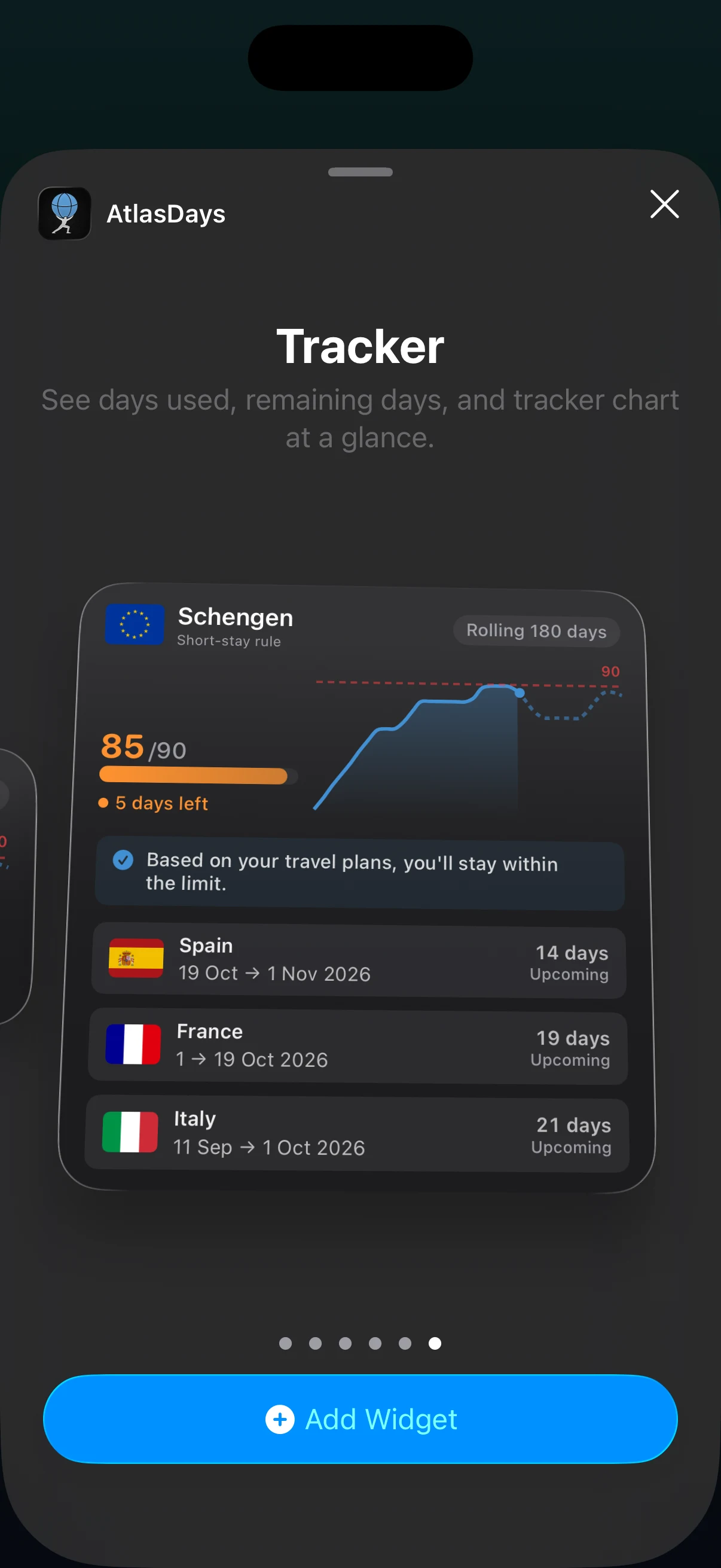
Add AtlasDays from the iOS widget gallery, choose a Tracker or World Map widget in Small, Medium, or Large, then edit the placed widget to choose a tracker.
Add a widget
- Long-press an empty area of the Home Screen until it enters editing mode.
- Tap + and search for AtlasDays.
- Choose Tracker or World Map, then swipe through the available sizes.
- Tap Add Widget and place it.
The same steps are in the app under Settings → Widgets.
Choose a tracker
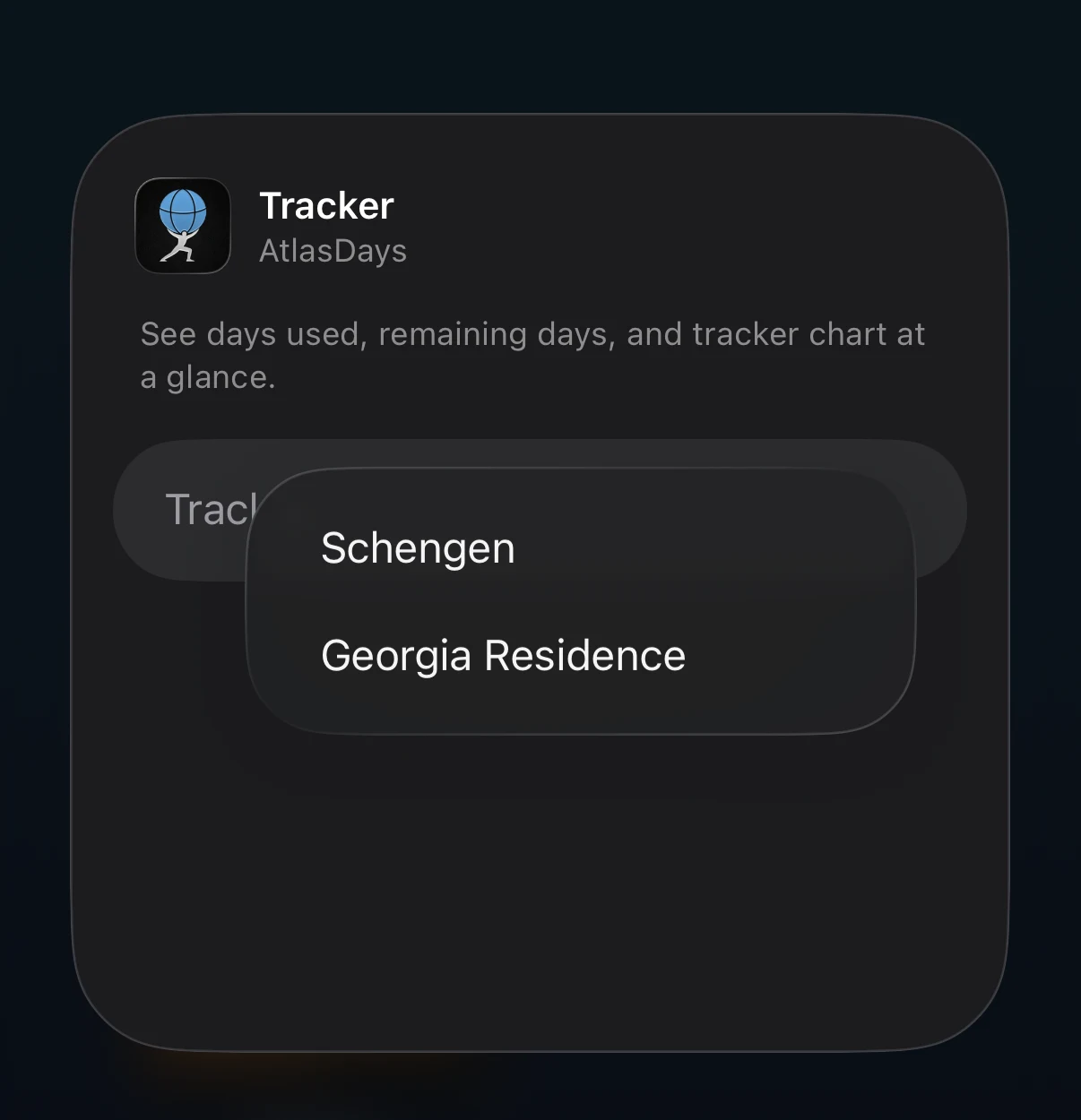
Long-press a placed Tracker widget, choose Edit Widget, and select the Tracker. Each widget remembers its own selection, so several trackers can appear together. A widget with no selection shows your first tracker.
Widgets for trackers with two limits
For a rule tracker the Edit Widget sheet adds a Condition choice, which sets the limit the widget shows. Until you choose one, the widget reads Edit this widget to choose a limit. The Medium widget shows the trend for that limit; other sizes show the compact status.
Understand refresh timing
AtlasDays writes a new widget snapshot when relevant data changes, and iOS decides when the Home Screen redraws it. Open AtlasDays once after installing it or after a large edit so the widget has current data to draw. The small widget summarizes status in a few words, such as how many days are left or the date a limit clears.
Free and Pro layouts
The Small Tracker widget and all World Map sizes are free. Medium and Large Tracker widgets, which add charts and forecasts, require AtlasDays Pro. Without Pro they show a Pro Widget lock and open the upgrade screen when tapped.
If a widget is blank or stale
Open AtlasDays once, confirm the selected tracker still exists, and wait for iOS to refresh the widget. A widget reading Open AtlasDays to set up a tracker means no tracker has been created yet. For a differing count, compare the widget’s tracker selection with the tracker inside the app.
Last updated September 30, 2026