

Check Whether a Planned Trip Fits
Add the trip with its real future dates, then open the tracker that governs it. The sentence under the chart tells you whether those dates take you past the limit and on which date that happens.
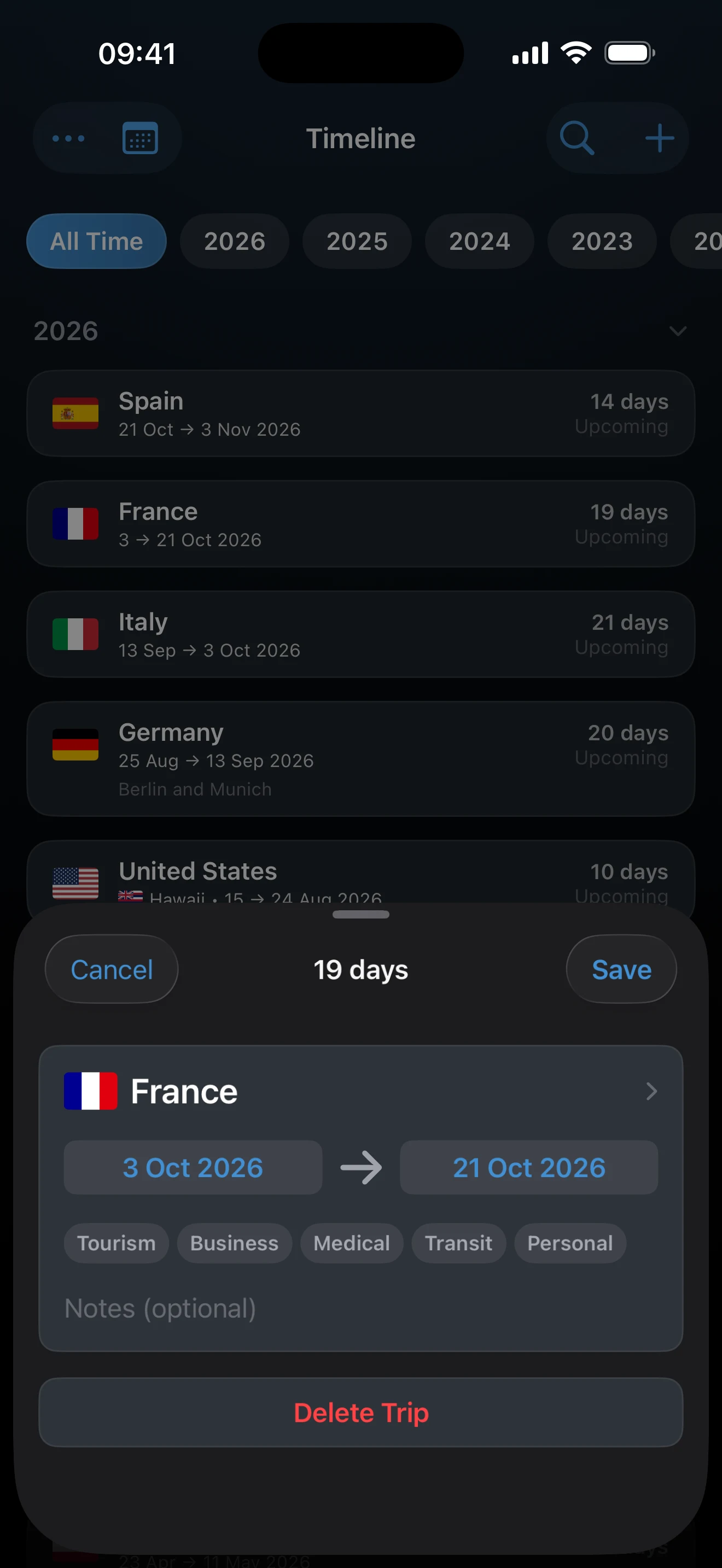
Add the trip you are considering
- Open Timeline and tap +. You can also tap + in a tracker's trip list to start with that tracker's countries.
- Choose the country, and a US state when you track states.
- Enter the planned start and end dates.
- Tap Save.
A future trip does not change your current total. It is counted separately as planned travel until its dates arrive.
Read the forecast
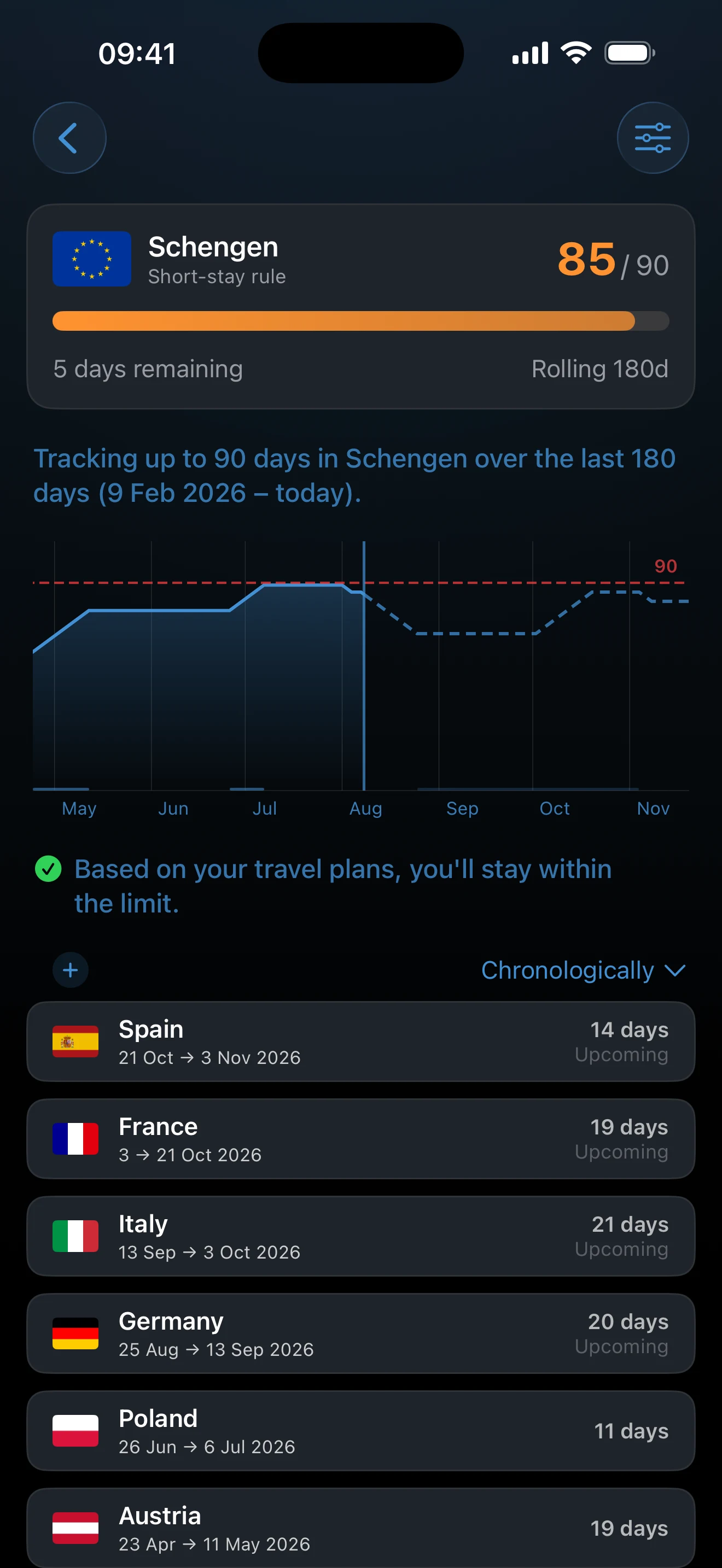
Open the tracker that covers those countries. Under its chart, AtlasDays describes what your plans lead to, for example Based on your travel plans, you'll reach the limit on followed by a date. If the plans stay within the limit, it says so. On a goal tracker, the sentence tells you when you would reach your target instead. A trip that starts today is treated as ongoing, so the wording becomes If you continue your stay.
Try a different set of dates
Edit the planned trip and save it again. The forecast recalculates, so you can shorten the stay, move it later, or split it until the dates work.
What the forecast cannot do
Only trips with exact dates contribute. A planned trip saved as Year Only carries no dates to project. An Open-ended trip is treated as continuing, so add its end date once you know it.
Remove a trip you decided against
Open the planned trip in the Timeline and delete it. Nothing else has to be corrected, because a future trip never entered your historical totals.
A forecast is arithmetic, not permission. It projects your own recorded dates forward. It does not confirm that a border authority will admit you.
If no forecast appears
Confirm that the planned trip has exact dates, that its country is inside the tracker, and that it starts in the future or today. Rolling, calendar-year, and days-away trackers show a forecast sentence. Per Entry trackers without a start date, and rule trackers such as the two-limit citizenship trackers, do not. Trackers and Limits explains the tracker types.
Last updated September 30, 2026