
Add, Edit, or Delete a Trip
The Timeline is the source record behind the Dashboard, map, trackers, exports, and widgets. Edit the trip there when any of those views need different input.
Add a trip
- Open Timeline and tap +. Before your first trip there is no +: tap Add manually on the Add your first trip card instead.
- Tap Select country and choose one. For a US trip, you can add a state under State (optional) when you want state-level tracking (Pro).
- Tap Start date and End date and set both. For a stay that has not ended, tap Open-ended on the end-date page. How Trip Dates Work covers Open-ended, Year Only, and Transit.
- Optionally choose a purpose or add Notes (optional), then tap Save.
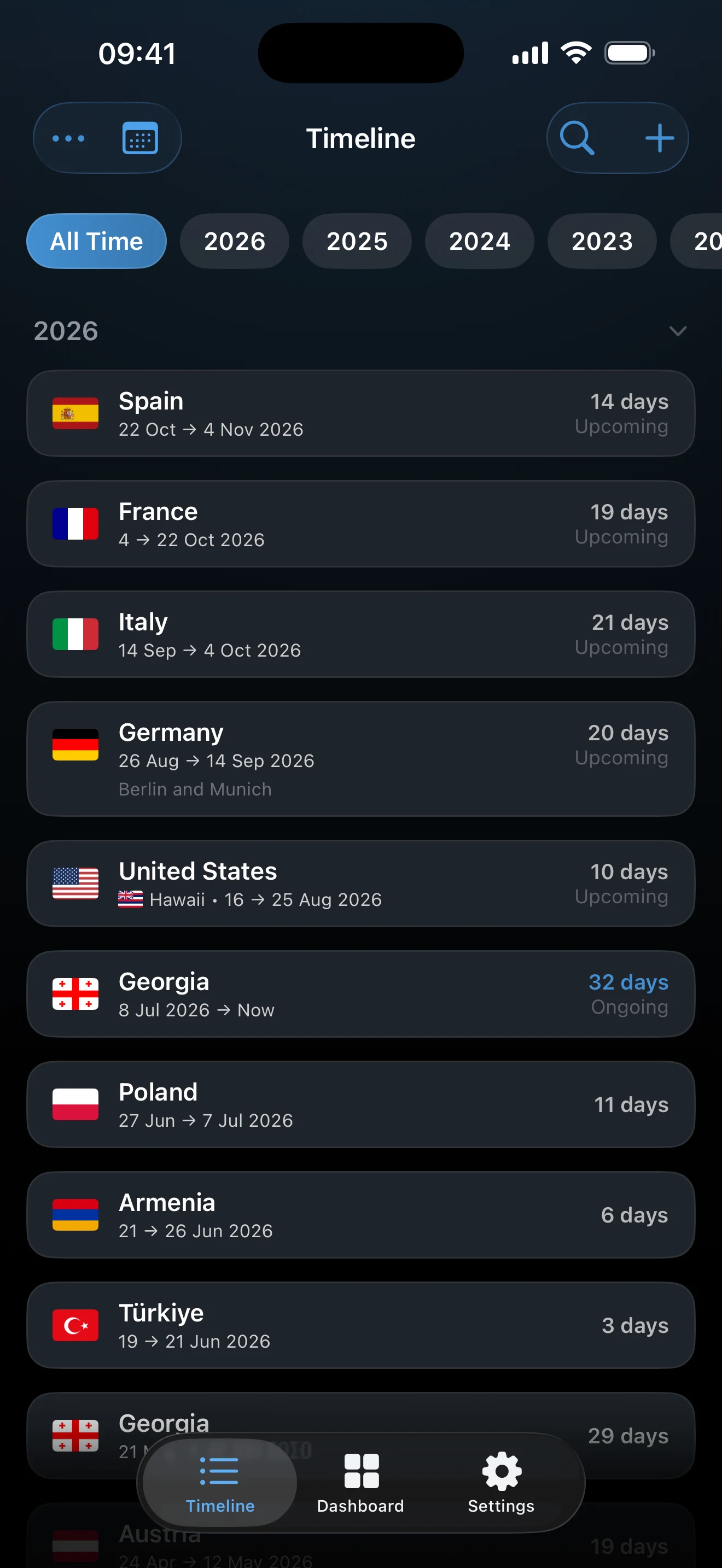
Edit a trip
Tap a trip in the Timeline list, or open it from a day in Calendar view. Change the country, state, dates, purposes, or notes, then tap Save. Related totals refresh from the edited record.
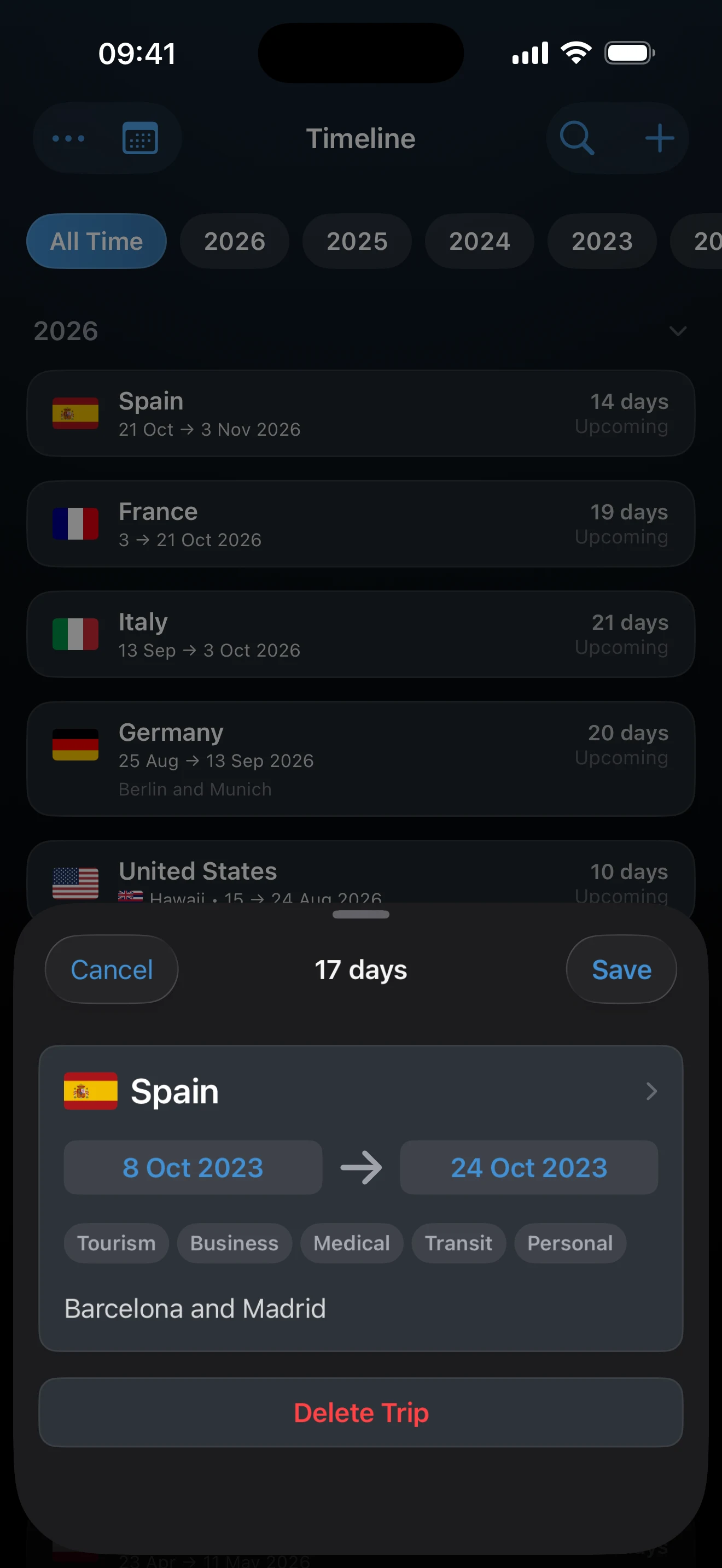
Delete a trip
Swipe a trip left in the list and tap the trash icon, or open the trip and tap Delete Trip, which asks you to confirm. After a deletion from the Timeline, an Undo button appears at the bottom of the screen for about four seconds. Once it disappears the deletion stands, so restore the trip by adding it again.
Switch between List and Calendar
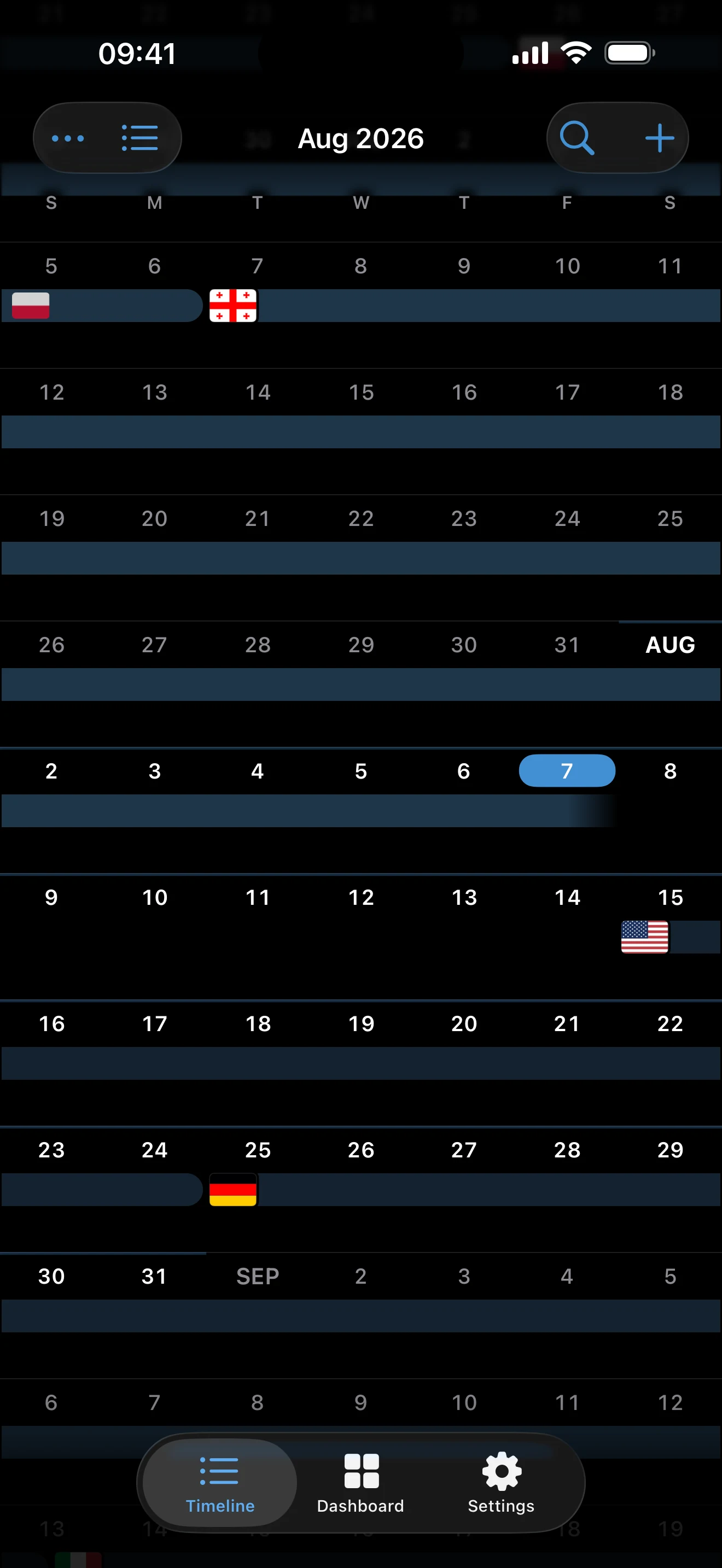
The button next to ••• at the top left switches views. The list is fastest for reviewing trips in order. The calendar makes gaps and trips spanning weeks easier to see, and shows only trips with exact dates. Tap a day to see its trips in a sheet, and use + there to add a trip on that date. Both views edit the same records, and the list keeps its place when you switch back to it.
On iPad and an opened iPhone Duo, the list and the calendar sit side by side instead. The button with two arrows beside ••• swaps them, and both keep their place.
To search, filter by year, change sorting, or find photos for your trips, see Search, Filter, and Customize the Timeline.
United States stays
A United States trip without a state still contributes to country-level US totals. With Pro, the state shows beneath the country name once you add one, and consecutive US trips can be grouped into one United States card. Add the state when you need a state tracker or the US state breakdown.
If a trip cannot be saved
Save stays unavailable until a country and dates are set: a start and an end date (or Open-ended), or a year for Year Only. Check that the end date is not before the start date. If the message Duplicate Trip appears, that exact trip already exists. Overlaps do not block saving; see Resolve Overlapping Trips.
Last updated October 16, 2026