

Search, Filter, and Customize the Timeline
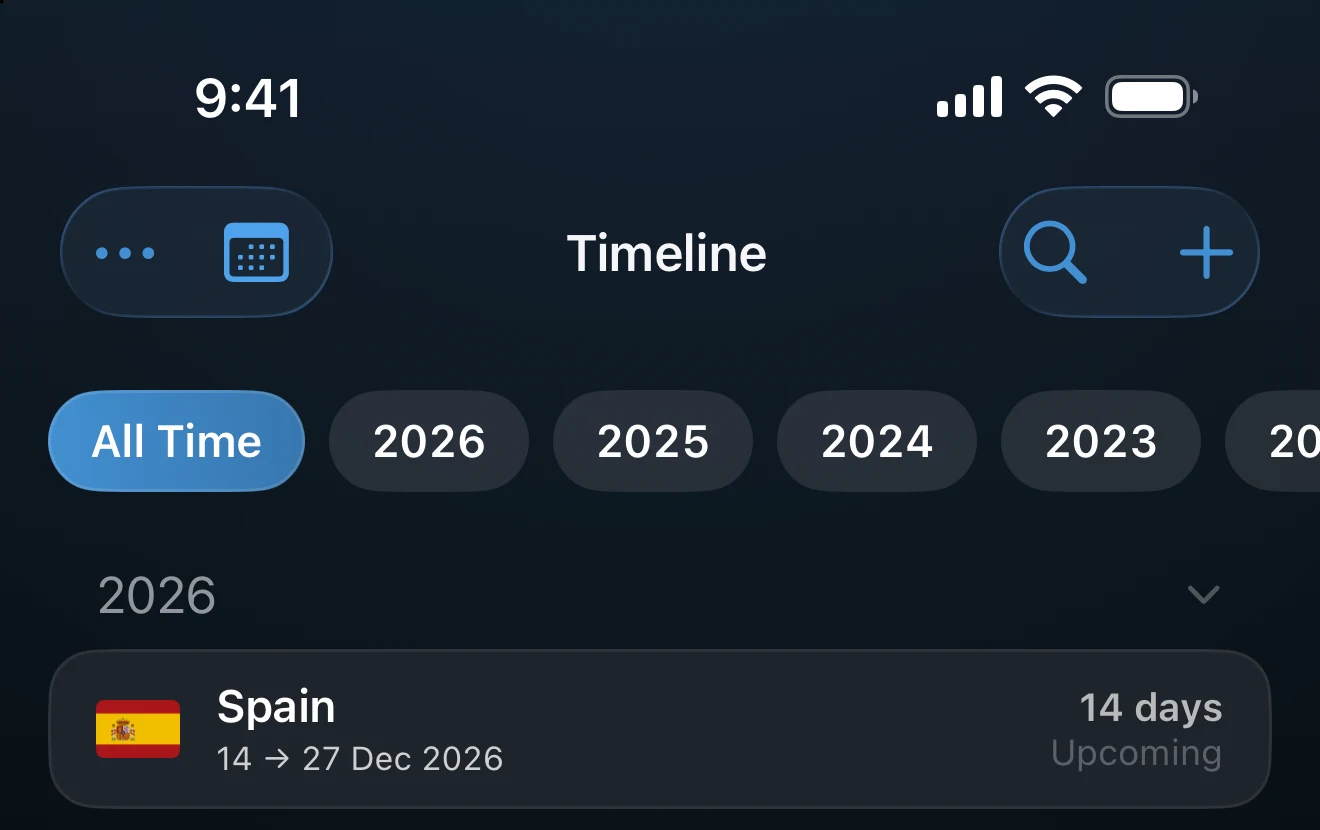
Search, the year pills, and the ••• menu at the top of the Timeline change what you see and how it is laid out. Two menu items, Find Photos and Resolve overlaps, also change your trips.
Search
Tap the magnifier at the top right and type. Search matches the country name, a US state, a purpose such as Business, your notes, and years. It works in both the list and the calendar. Tap the X to close it.
When nothing matches, the Timeline says No trips matching followed by what you typed.
Filter by year
Once your trips span more than one year, a row of pills appears above the list: All Time and one pill per year. Tap a year to show only that year, or All Time to see everything again.
The ••• menu
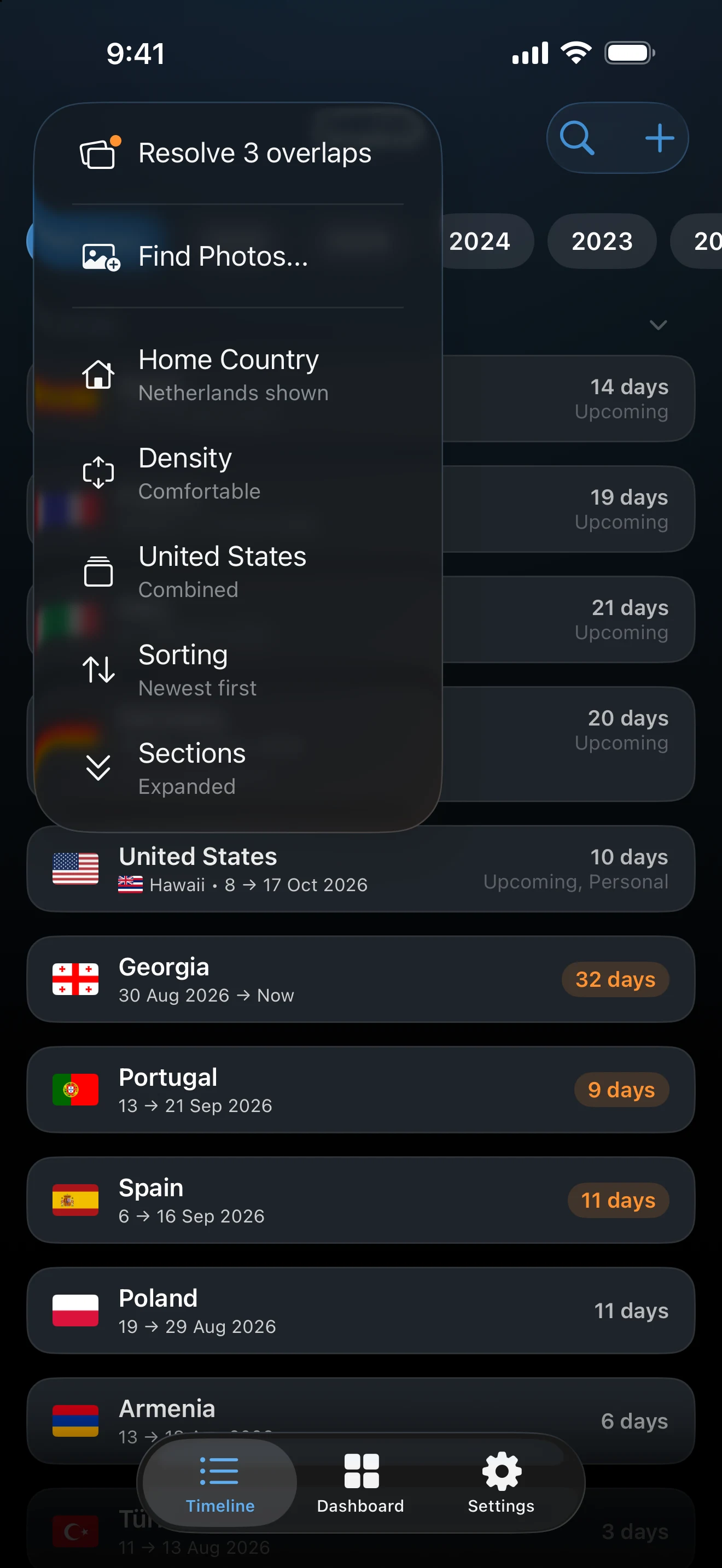
The ••• button sits at the top left, next to the button that switches between list and calendar. What it offers depends on the view and on your settings.
- Resolve N overlaps appears only when trips overlap. See Resolve Overlapping Trips.
- Find Photos... attaches photos and videos to trips you already have. See below.
- Home Country hides or shows trips to your Home Country. It appears only when a Home Country is set. This changes what the Timeline lists, not your totals or trackers.
- Density switches between Comfortable and Compact. Compact tightens the cards and leaves out notes and photo previews.
- United States switches between Combined and By State (Pro). See below.
- Sorting (list only) toggles Oldest first and Newest first.
- Sections (list only) collapses or expands the year headers.
- Trip Colors (calendar only) colors trips By Continent or By Accent.
United States: Combined or By State
With Pro, US trips can carry a state. In Combined, consecutive US trips collapse into one United States card, and tapping it opens the trips behind it. In By State, each trip shows on its own with its state first. The setting applies to the list and the calendar. Without Pro, US trips show as plain United States.
Add photos to existing trips
Find Photos looks for photos and videos taken during trips that are already in your Timeline. It does not create trips; Photo Import does that.
- Open ••• and choose Find Photos....
- Tap Find Matching Photos. AtlasDays checks every trip that has exact dates and a mapped place, and skips international airspace and waters.
- When the scan ends, tap Review N Trips, check the matches under Photos to Add, and tap Add Photos.
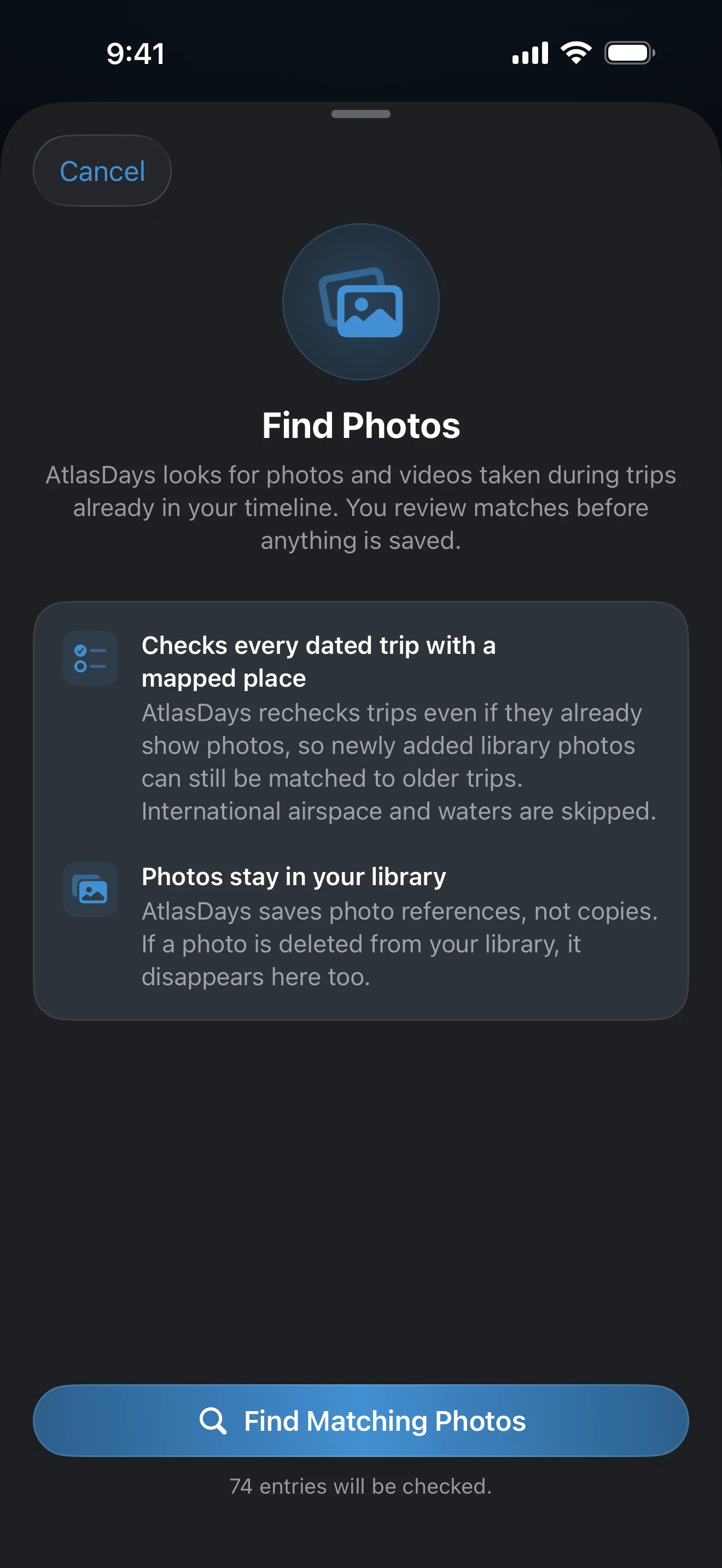
If nothing new turns up, the result is No Photos Found. Find Photos needs full photo access; if iOS access is limited, the Photo Access Needed alert points you to Settings. AtlasDays saves references to your photos, not copies, so a photo deleted from your library disappears from the trip too. Previews on trip cards can be turned off in Settings → Appearance → Show Previews.
Cards at the top of the list
Up to three suggestion cards can appear above your trips, all about Auto-Detect:
- Track trips automatically offers Turn On Auto-Detect and How it works.
- Auto-detect is paused appears when location access is no longer set to Always. Open Settings takes you to iOS Settings.
- Stay updated offers Turn On Notifications after Auto-Detect has added a trip while notifications are off.
The X on a card dismisses it. You can turn Auto-Detect on later in Settings.
If a trip seems to be missing
Clear the search field, choose All Time in the year pills, and check whether Home Country in the ••• menu is hiding it. The calendar places only trips with exact dates; Year Only trips appear in the list.
Last updated September 30, 2026