

Import Trips
Open Settings → Import and choose the source that matches what you have: Photos, Flighty, a CSV File, or an AtlasDays Backup. Every source except the backup shows its trips for review first, and nothing is saved until you confirm.
Choose a source
The Import Trips screen lists four sources. Imports are free, and they are processed on your device.
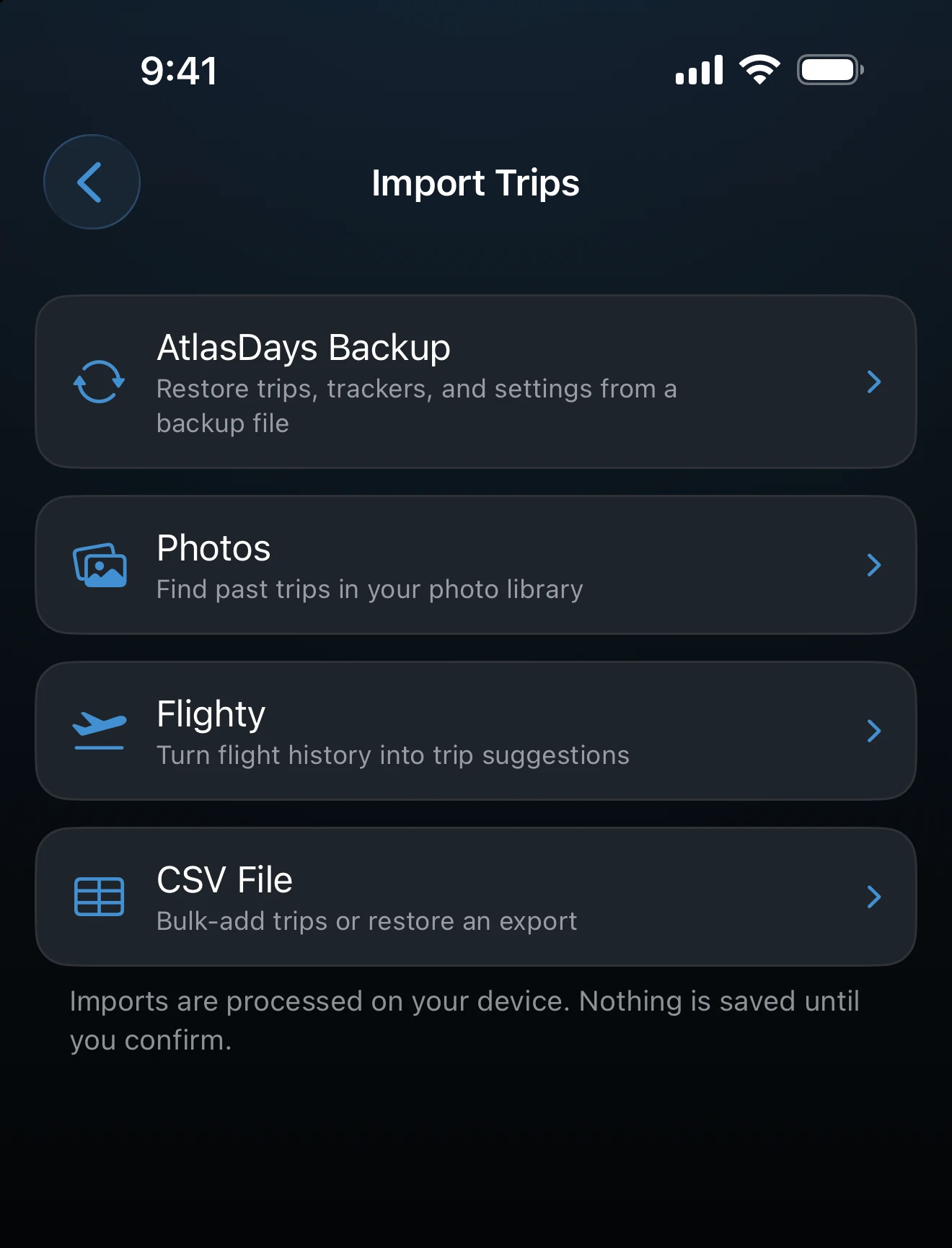
- Photos finds past trips from the dates and locations in your photo library. Start here when you have no record of older travel. See Photo Import.
- Flighty turns a Flighty flight-history export into trip suggestions. It covers flights only. See Flighty Import.
- CSV File bulk-adds trips from a spreadsheet or booking record. See CSV Import and the CSV Format Reference.
- AtlasDays Backup restores trips, trackers, and settings from a backup file and replaces what is on the device. It is a restore, not a review. See Back Up and Restore.
Review before saving
Photos, Flighty, and CSV each end on a review screen with one card per proposed trip. Tap a trip to correct it, or clear its selection to leave it out, then confirm the import. Selecting a file or finishing a scan adds nothing to Timeline by itself.
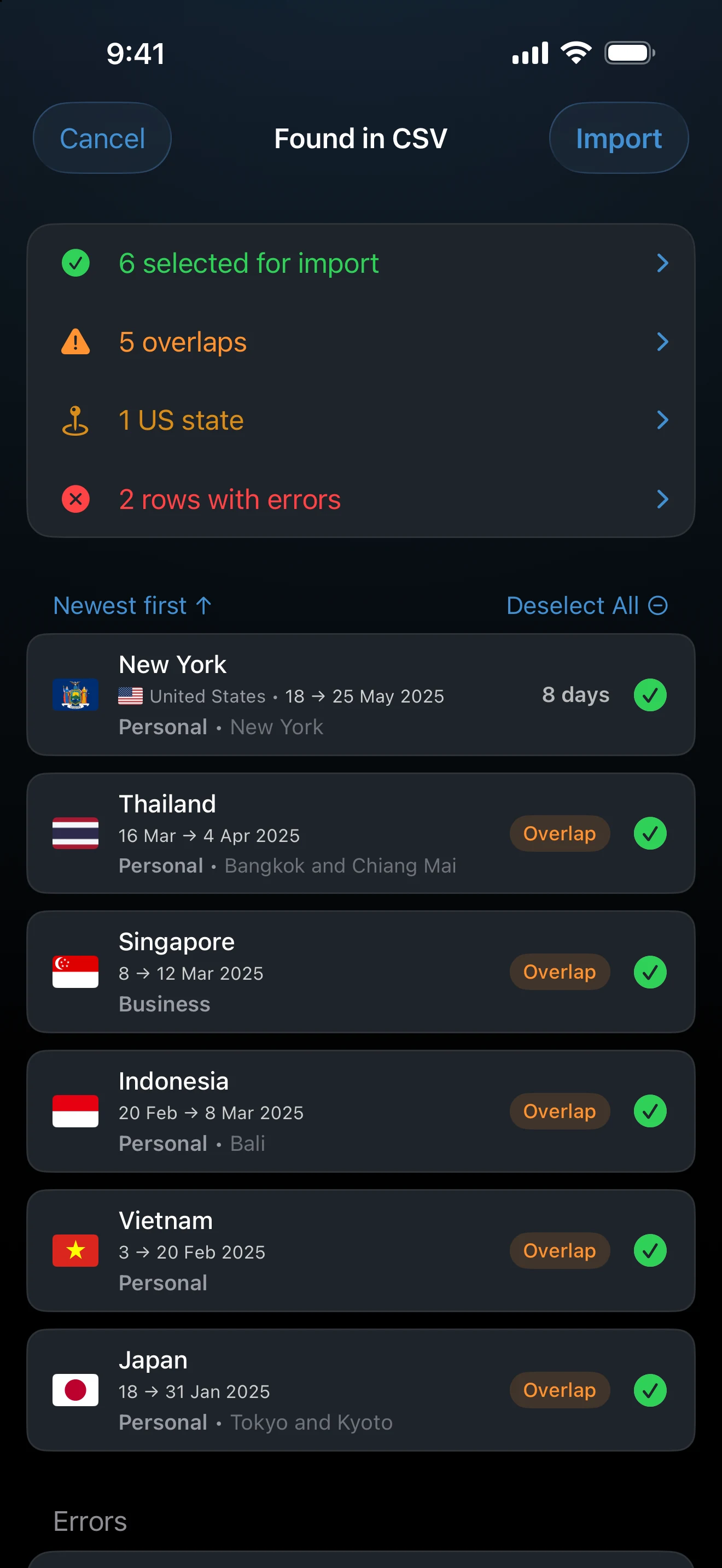
Cards can carry a small pill that compares the trip with what you already have. Duplicate means the same country and dates, or a range already covered by an existing trip in that country. Duplicates cannot be selected, so they are never imported twice. Merge means the trip covers a wider range than an existing trip in the same country, and AtlasDays combines the two instead of adding another. Overlap means the dates share days with an existing trip without being a duplicate or a merge. Check the dates and places before you keep it. The individual articles explain the extra checks each source adds.
Remove an import you do not want
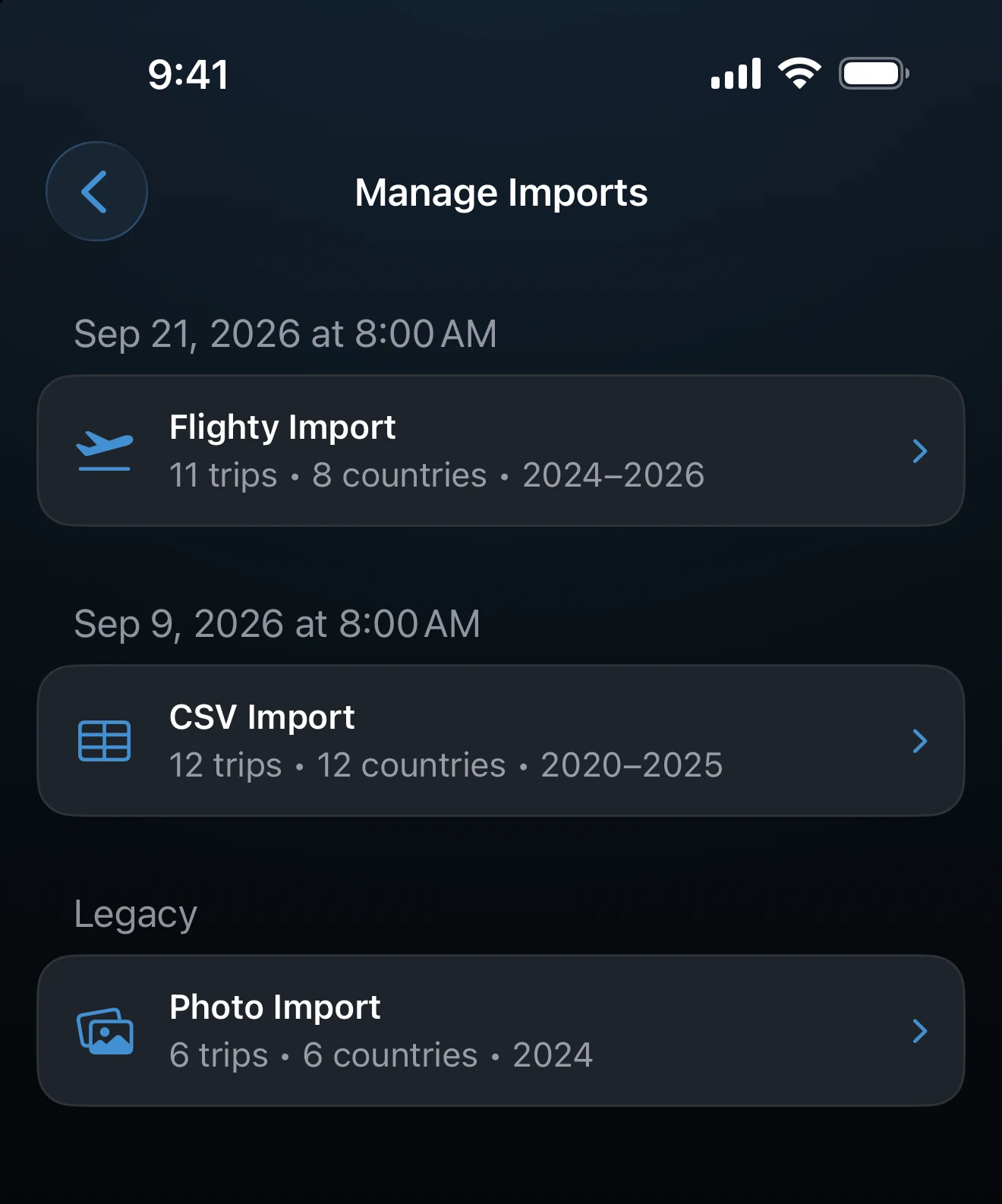
If an import brought in trips you would rather not keep, open Settings → Manage Imports. The row appears only while your trips include imported ones.
- Find the import. Each one is listed by the date and time it was made, with its number of trips and countries. Older imports without a recorded date appear as Legacy.
- Tap it to see its trips. You can open any trip there to edit it.
- Tap the trash icon, then Delete, to remove every trip from that import.
Only the trips from that import are removed. Trips you added by hand or that Auto-Detect added are not touched. To remove a single trip instead, see Delete Data or Start Over.
If a trip you expected is missing
Check whether it appeared with a Duplicate or Merge pill, which means AtlasDays already had a trip that covers it. Trips without exact dates do not add to day counts, as described in How Trip Dates Work.
Last updated September 30, 2026