
Google Timeline Import
Export your Timeline from Google Maps, select the file in AtlasDays, and review the suggested trips before saving. It is one of the ways to add past trips.
Export from Google Maps
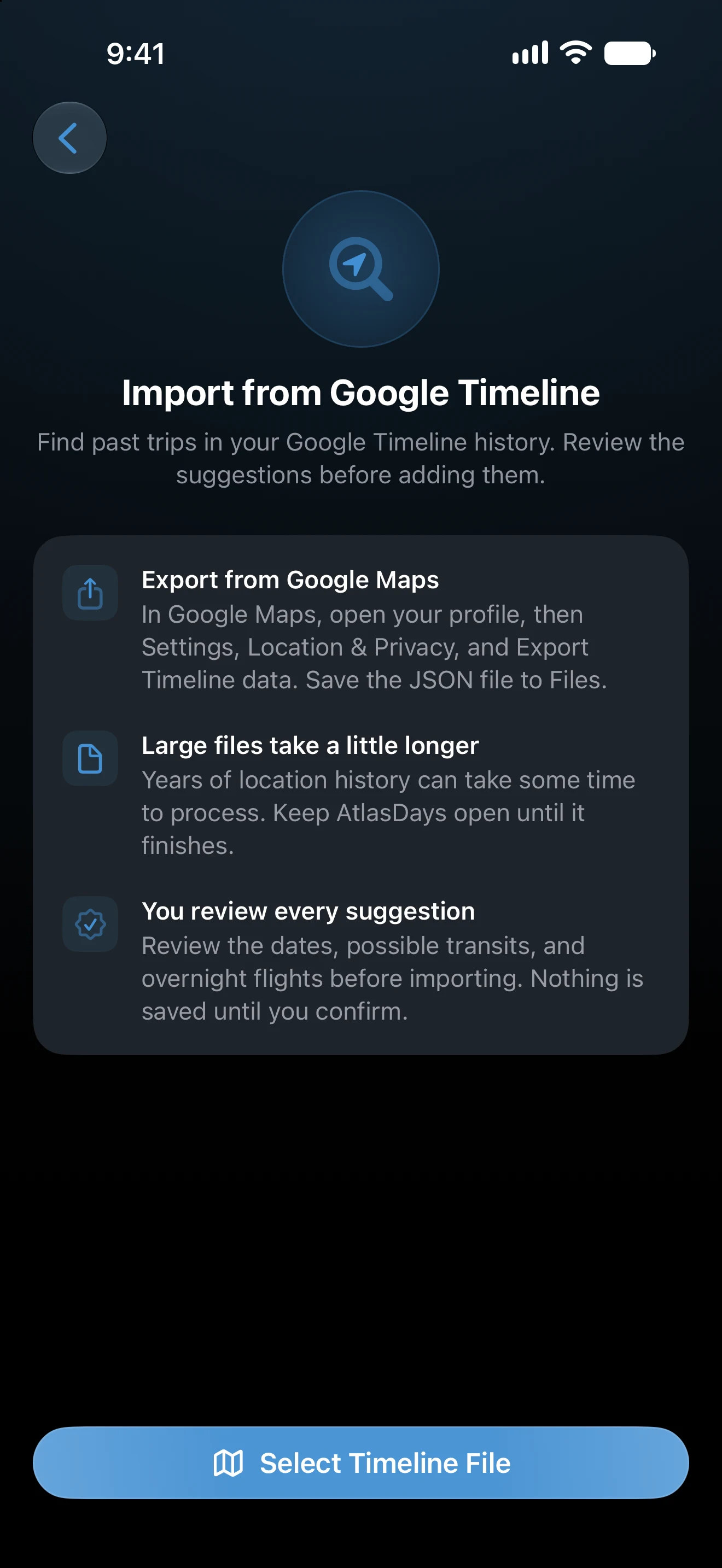
Google keeps Timeline on your phone, not online. In Google Maps on that phone, open your profile, then Settings → Location & Privacy → Export Timeline data, and save the JSON file to Files. This works from an iPhone or an Android phone; on Android, move the file to where your iPhone's Files app can reach it, such as iCloud Drive.
If you downloaded your Location History from Google Takeout in the past, AtlasDays also reads the Records.json file in it. Unzip the download first and select that file. The monthly files in Takeout's Semantic Location History folder are not read.
Import into AtlasDays
- Open Settings → Import → Google Timeline.
- Tap Select Timeline File and choose the exported file. Large files take a little longer, so keep AtlasDays open until it finishes.
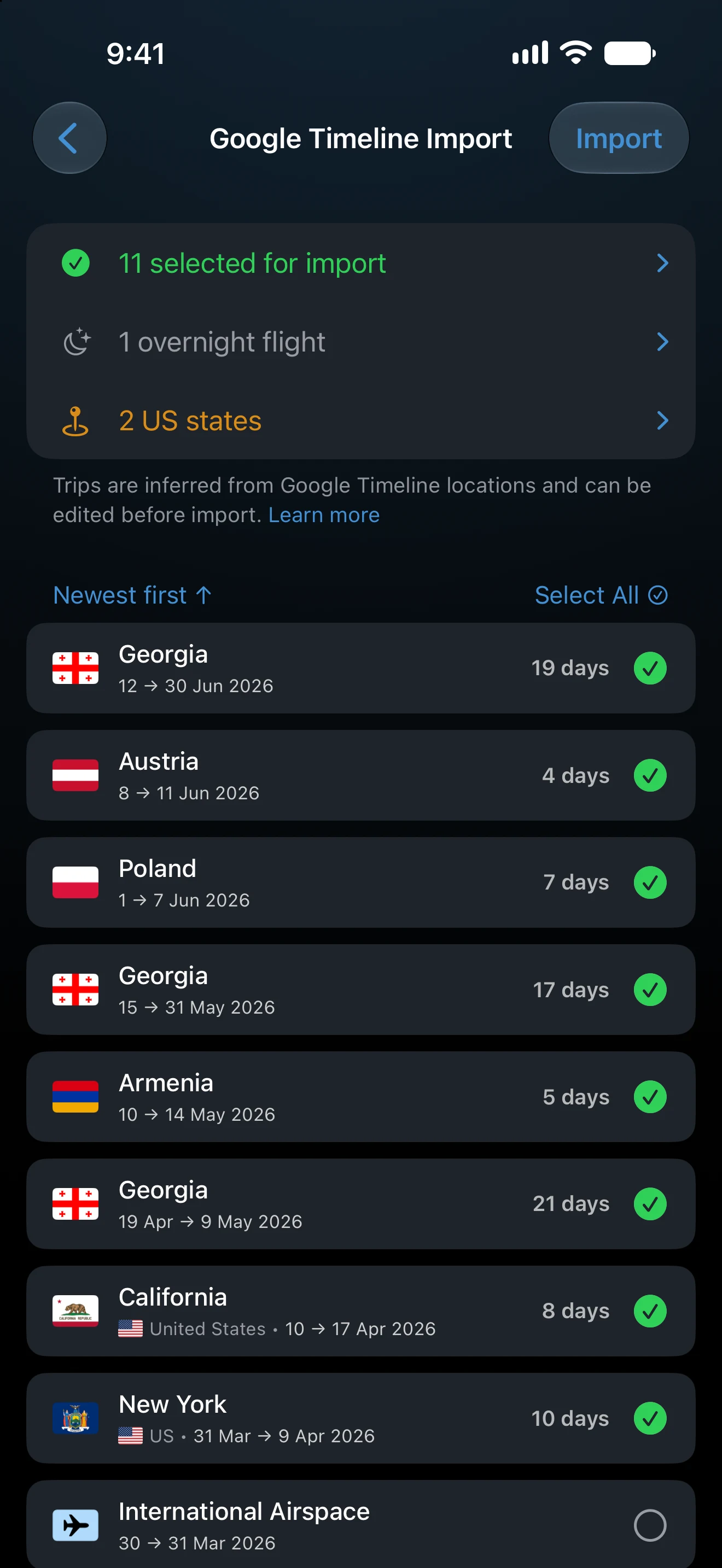
- Tap Review N Trips and check the preview, Google Timeline Import.
- Tap any trip to edit it, or clear its selection to leave it out. Then tap Import and confirm.
The file is read on your device and is not uploaded anywhere. Nothing is saved until you confirm.
How locations become trips
AtlasDays places each location in a country and creates a trip from the first to the last day you were there. The preview follows from that:
- Possible transits are short stops where every location is at an airport. They start unselected and import as Transit if you select them. Select one only if you stayed airside.
- Overnight flights are recorded as International Airspace when you were in the air at midnight. They also start unselected.
- At sea, a location inside a country's territorial waters counts for that country, and one farther out counts as International Waters. Flying over a country never creates a stay there.
- If your most recent locations are from the last few days, the latest trip is left ongoing, because you may still be there.
Tap a trip to see its Timeline evidence: the first and last location behind it. Learn more, below the list, opens How trips are inferred.
Location history has gaps. Days when your phone was off, or Timeline was paused, have no locations, and AtlasDays fills short gaps by estimate. Compare the dates with where you actually spent your days before importing.
Duplicates and overlaps
Trips that repeat one already in Timeline are marked Duplicate. Merge means a trip shares at least one day with an existing trip in the same country, which AtlasDays widens instead of adding a second trip. Overlap means the trip shares a night with a trip in another country. Import Trips explains the rules every source shares.
Review US states
When your locations show which US states you were in, AtlasDays proposes them. With Pro, each state imports as its own trip. Without Pro, the states import as plain United States trips. The import itself is free.
If the file is rejected
This file isn't a Google Timeline export means AtlasDays does not recognize the file. Select the Timeline.json exported from Google Maps, or Records.json from a Takeout download, not a zip file or a monthly file. This file is not valid JSON means the file is damaged or incomplete; export it again. No usable locations found in this file means the export holds no locations AtlasDays can place.
Last updated November 16, 2026