

Back Up and Restore
Export an AtlasDays Backup from Settings → Export to keep a copy of your trips, trackers, and settings in one file. Restore it from Settings → Import → AtlasDays Backup on this device or a new one.
Create a backup
- Open Settings → Export → AtlasDays Backup. Export is unavailable until you have at least one trip.
- Tap Export Backup. The line under the button shows how many trips and trackers the file will hold.
- Choose where to send the file, such as Files, AirDrop, or Mail. Keep it somewhere you can reach from a new device.
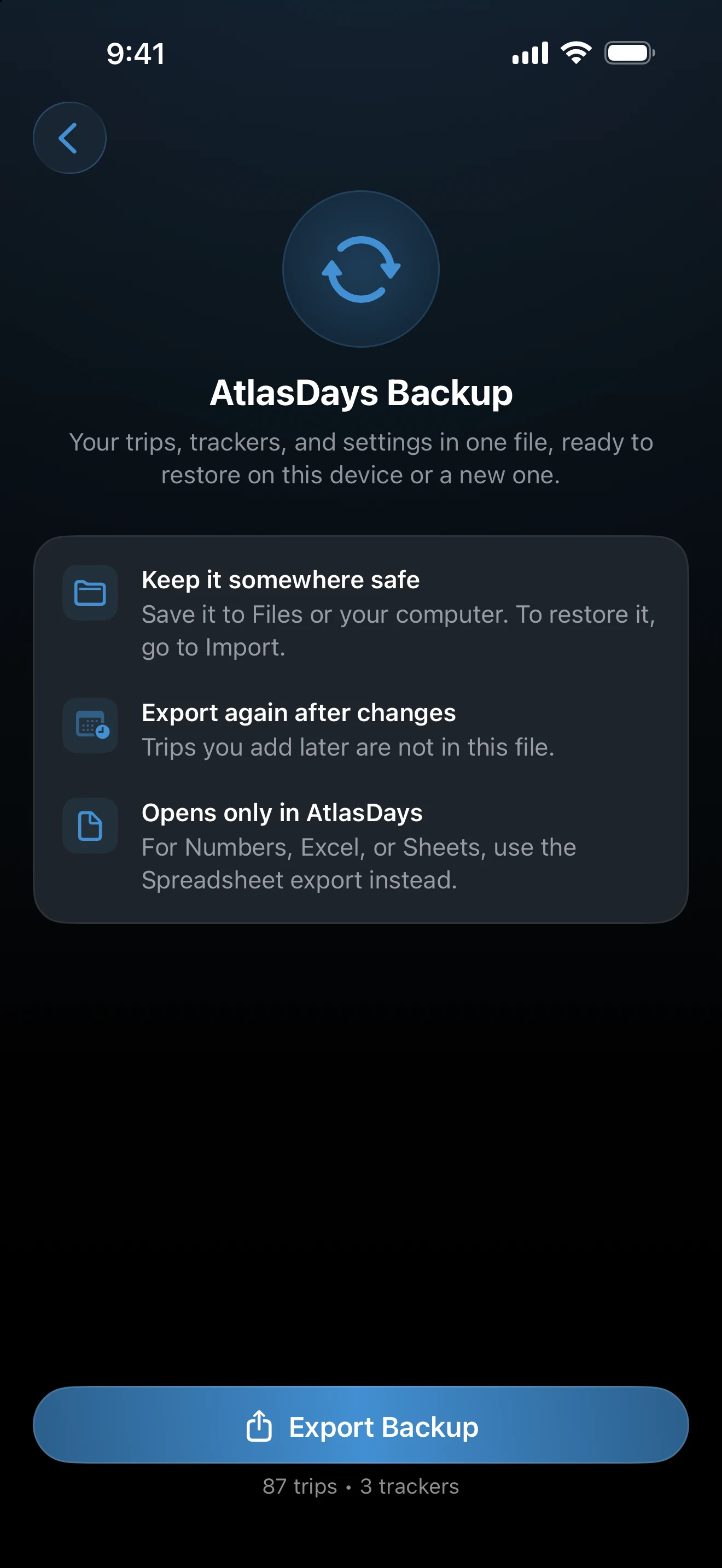
The file is named AtlasDays Backup followed by the date, with the extension .atlasdays. A backup is a copy from that moment: trips you add later are not in it, so export again after larger changes. Creating a backup is free and does not change anything in the app.
What is in the file
- All trips, with their dates, purpose, notes, and Transit or Year Only status.
- All trackers, with their rules and alert settings.
- Preferences that shape what the numbers mean or how the app looks, such as Home Country, the Country Count list, accent color, and Dashboard order.
Some things stay out on purpose. Auto-Detect, notification, and iCloud Sync settings belong to the device and its permissions. Pro status, export options, the app icon, and PDF personal details such as passport number and date of birth are not included either. The file holds no photos or photo previews.
Restore a backup
- Get the
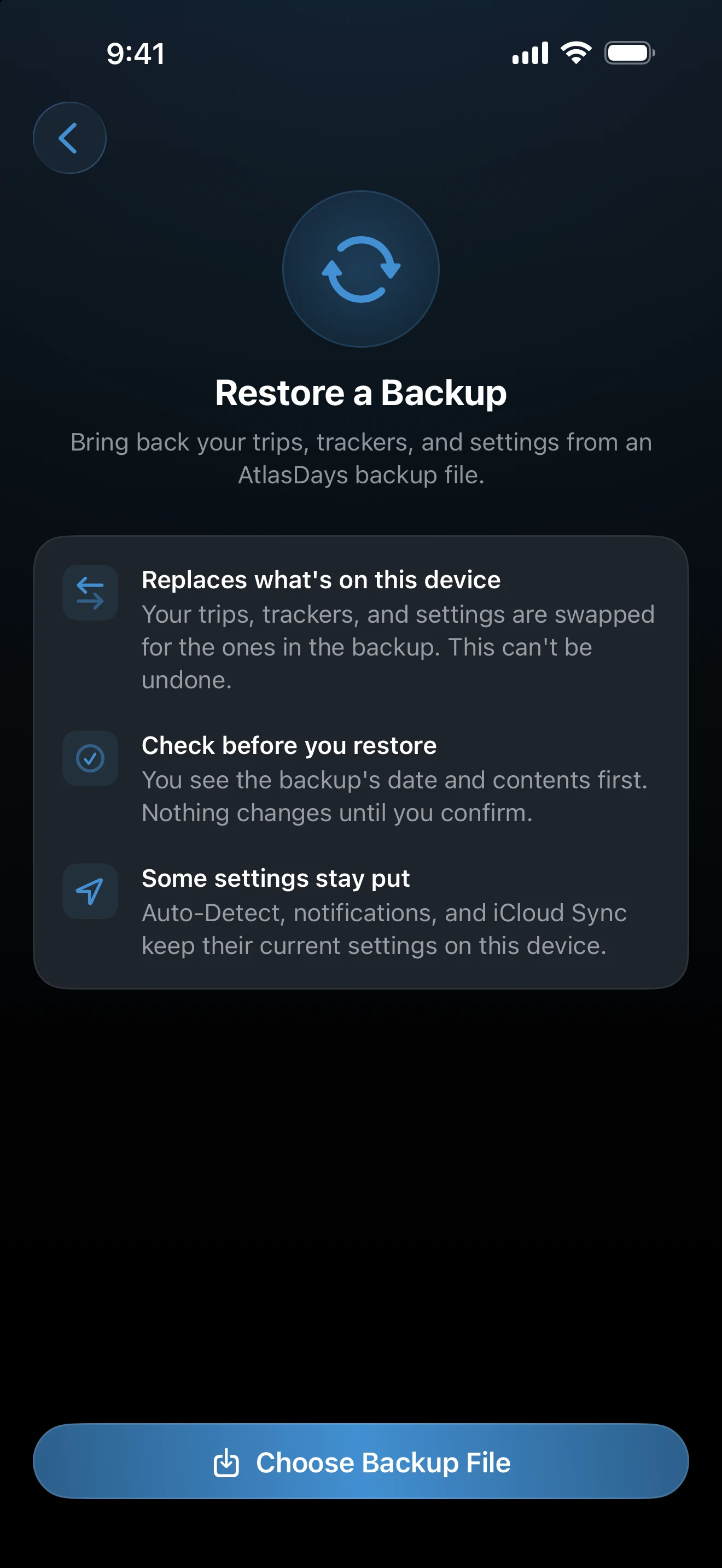
.atlasdaysfile onto the device, for example in Files. - Open Settings → Import → AtlasDays Backup and tap Choose Backup File. Opening the file from Files, Mail, or AirDrop starts the same restore.
- Read the confirmation. It shows the backup's date and, when the device already has data, both the counts on the device and the counts in the backup.
- Tap Restore on an empty device, or Replace if the device already has trips or trackers.
AtlasDays then opens the Dashboard with a short Backup restored message.
A restore replaces, it does not merge. Trips and trackers on the device that are not in the backup are removed, and there is no Undo. If you may want the current data, create a backup of it first.
Backup, iCloud Sync, and Spreadsheet
- AtlasDays Backup is a copy you keep. It works without iCloud and restores trips, trackers, and settings, but only in AtlasDays.
- iCloud Sync keeps one live record across your devices. It also carries deletions, so it is not a way back from a mistake.
- Spreadsheet and PDF exports are for analysis and paperwork. They do not restore trackers or settings.
With iCloud Sync on, a restore changes the data on every device that shares your iCloud account, and the confirmation says so. AtlasDays does not restore while iCloud is still syncing.
If a restore does not start
- Can't Open Backup means the file is not an AtlasDays backup, was damaged, or was made by a newer version of AtlasDays. Update the app for the newer case, or export a fresh backup from the source device.
- Can't Restore Yet means iCloud is still syncing. Wait a moment and try again.
- Restore Failed means nothing was changed. Try again, or restart AtlasDays.
The backup file opens only in AtlasDays. To work with trips in Numbers, Excel, or Sheets, use the Spreadsheet export.
Last updated September 30, 2026