

Flighty Import
Export your flight history from Flighty as CSV, select it in AtlasDays, and review the suggested trips before saving. It is one of the ways to add past trips.
Export from Flighty
In Flighty, open Settings → Account Data and export your flights as CSV. Save the file where the iOS Files picker can reach it, such as iCloud Drive or On My iPhone.
Import into AtlasDays
- Open Settings → Import → Flighty.
- Tap Select Flighty CSV and choose the exported file.
- Review the preview, Found in Flighty: suggested stays, layovers, overnight flights, incomplete trips, duplicates, and overlaps.
- Use Select All or Deselect All, tap any entry to edit it, then tap Import and confirm.
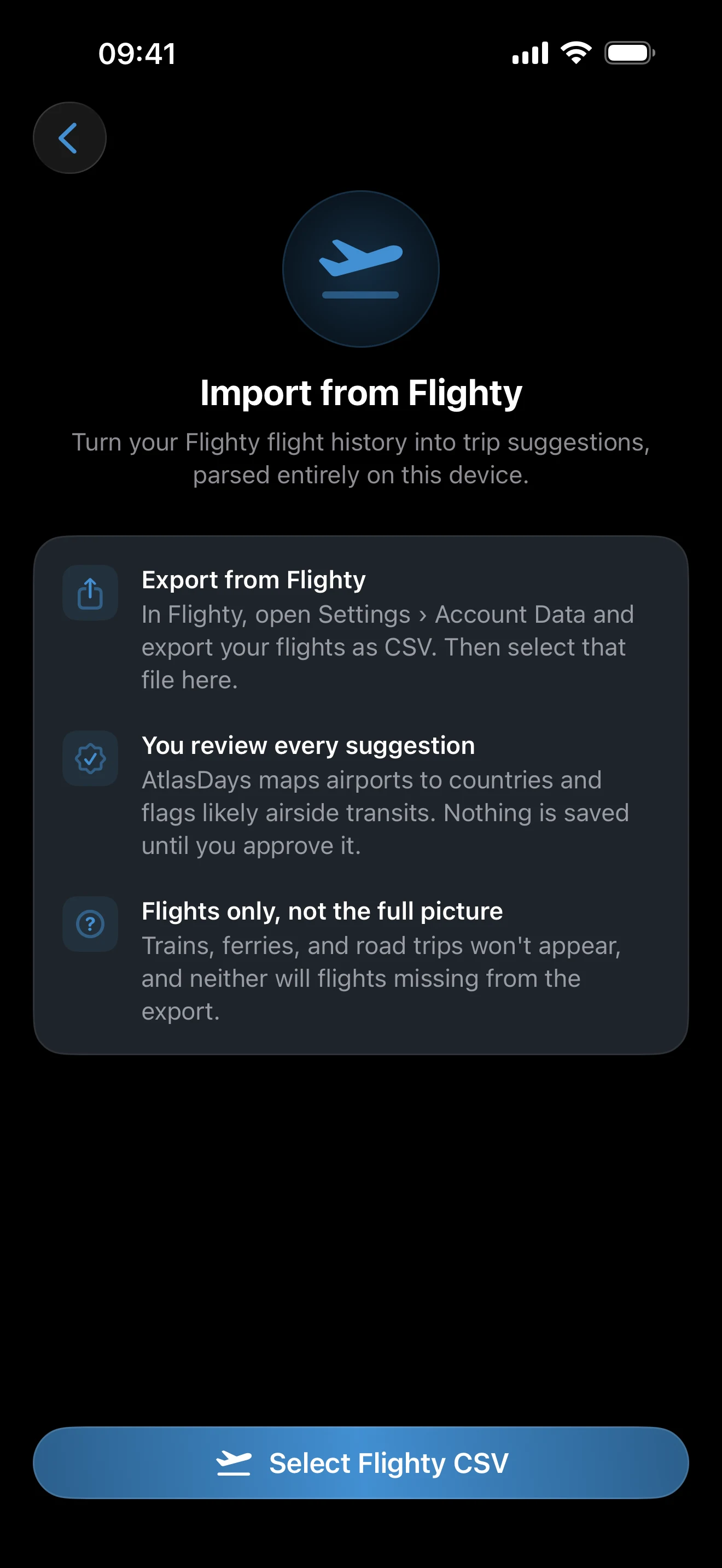
Parsing happens on the device, and nothing is saved until you confirm.
How flights become trips
AtlasDays maps each airport to a country and creates a trip when a flight arrives in a country and a later flight departs from it. The rest of the preview follows from that:
- Layovers under 24 hours are reviewed separately. Stops of 10 hours or less are marked Transit and excluded from day counts. Longer stops are assumed to mean you entered the country. Change this on a trip by toggling Transit.
- Overnight flights are recorded as International Airspace when you were in the air at midnight.
- Incomplete trips lack an arrival or a departure, for example after overland travel or a flight missing from Flighty. You can add the missing date in the entry, or leave it open-ended.
- Skipped rows are listed with a reason, such as a canceled flight or a missing airport code.
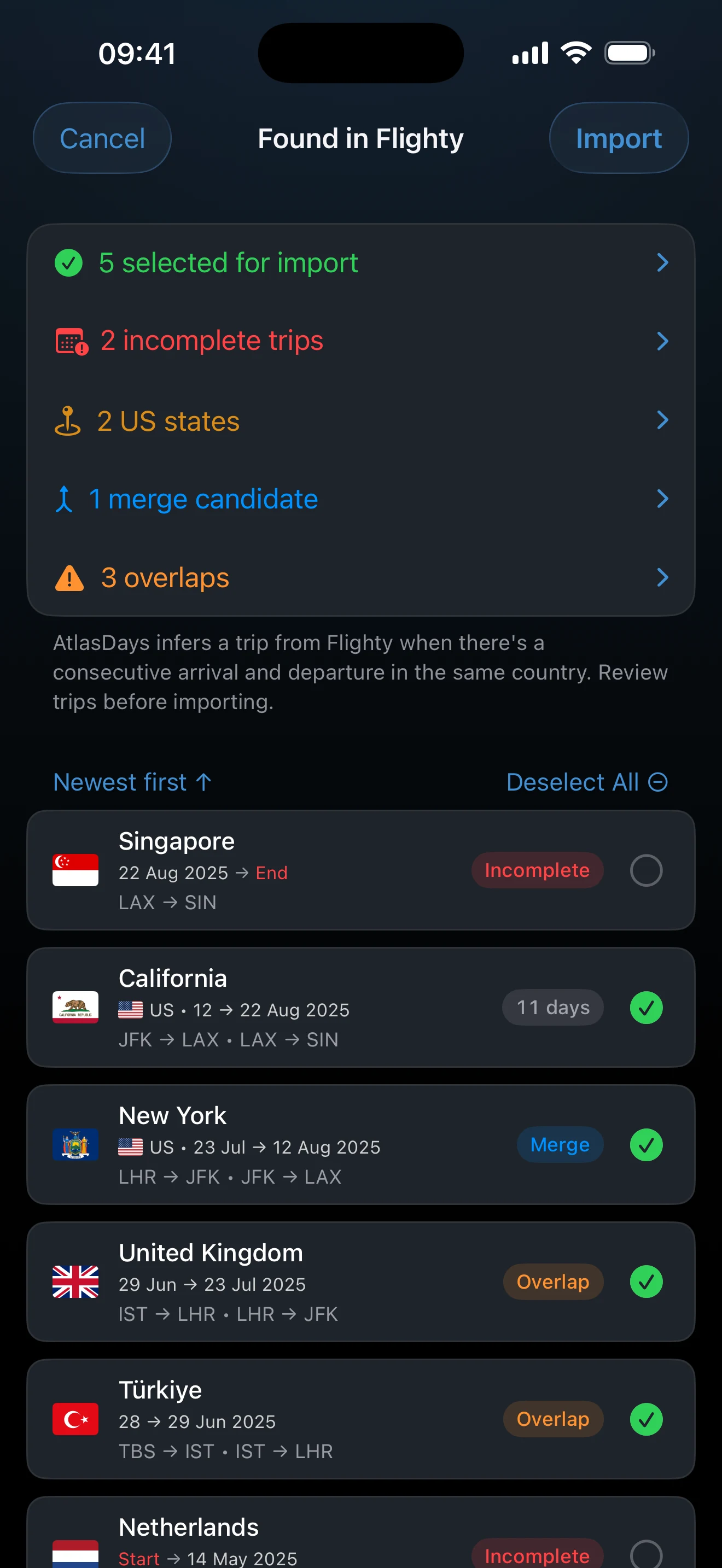
Flights only. Trains, ferries, and road trips do not appear, and neither do flights missing from the export. Compare the preview with where you actually spent your days before importing.
Duplicates and overlaps
Entries that repeat a trip already in Timeline are marked Duplicate. Merge means an entry covers an existing trip and would combine with it, and Overlap means the dates partly collide with another trip. Check these before importing.
Review US states
When airport information supports a US state, AtlasDays proposes it. With Pro, each state imports as its own trip. Without Pro, the states import as plain United States trips. Confirm the state before saving if you rely on state-specific tracking.
If the file is rejected
The message This does not look like a Flighty CSV export means the file is not the original Flighty export. Export it again from Flighty and select that file, not one resaved or rearranged in a spreadsheet. AtlasDays CSV files go through CSV Import instead. If the preview says No usable Flighty rows found, the export contained no flights AtlasDays could use.
Last updated September 30, 2026